
TL;DR:
- Google ad tags include measurement and publisher types, with GTM streamlining deployment and maintenance. Implementing advanced features like enhanced conversions and Consent Mode V2 improves data accuracy and privacy compliance, but regular audits are essential to prevent silent tracking failures. Proper governance of ad tags ensures reliable attribution signals and optimal campaign performance over time.
Google ad tags are defined as snippets of code that collect data on user interactions and send that data back to Google’s advertising and analytics systems. They fall into two primary categories: measurement tags, which track conversions and remarketing audiences, and publisher tags, which deliver ad inventory to websites. Without accurate tag implementation, campaign bidding algorithms receive corrupted signals, ad spend gets wasted, and attribution reports become unreliable. Google Tag Manager (GTM) and enhanced conversions are the two industry standards that most digital marketers rely on to keep their tracking stacks healthy in 2026.
What are the main types of Google ad tags?
Two distinct categories of Google ad tags exist, and confusing them is one of the most common mistakes marketers make. The first category is measurement tags. The second is publisher tags. Each serves a completely different audience and purpose.
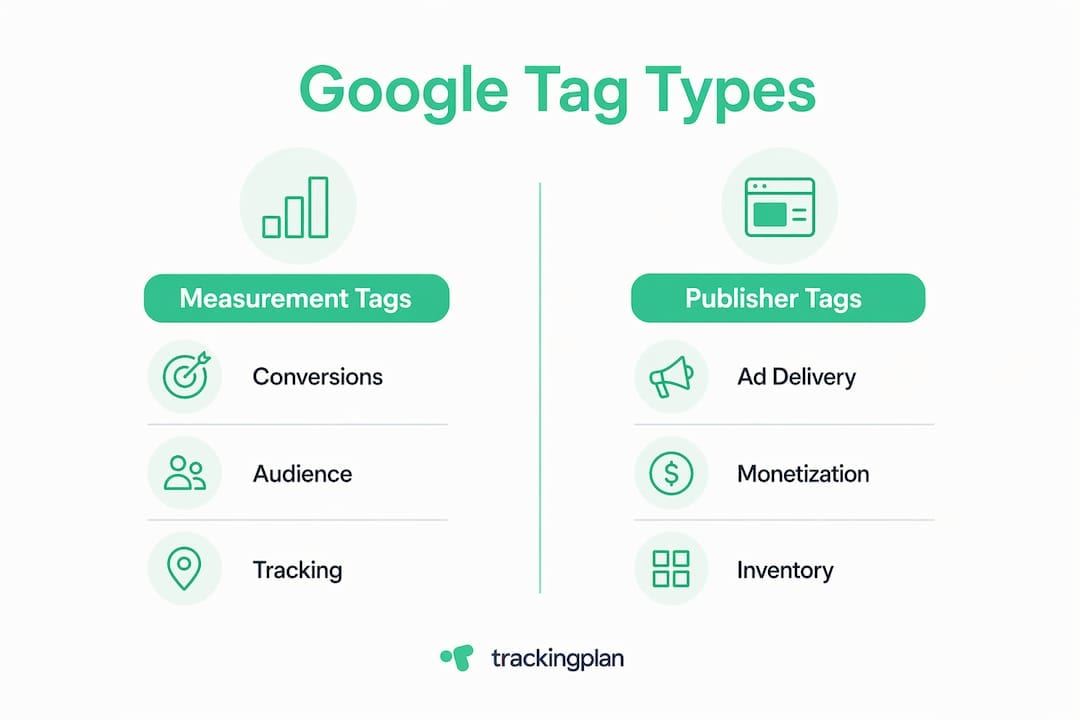
Measurement tags are what most digital marketers mean when they talk about google ad tracking. The primary measurement tag is the Google tag, also called gtag.js. It fires on your website to record conversion events, build remarketing lists, and feed data into Google Ads and Google Analytics 4 (GA4). Marketers use this tag to tell Google which user actions, such as form submissions, purchases, or phone calls, count as valuable conversions.
Publisher tags serve a different function entirely. The Google Publisher Tag (GPT) is a JavaScript library used by website owners who sell ad space. It communicates with Google Ad Manager to request and render ads in defined placements on a page. A news site or content publisher uses GPT; a direct response advertiser uses gtag.js.
| Feature | Measurement tags (gtag.js) | Publisher tags (GPT) |
|---|---|---|
| Primary user | Digital marketers, advertisers | Website publishers, ad ops teams |
| Core function | Conversion tracking, remarketing | Ad inventory delivery and rendering |
| Source platform | Google Ads, GA4 | Google Ad Manager |
| Fires on | Conversion pages, all pages | Every page with an ad unit |
| Key concern | Attribution accuracy | Page performance, fill rate |
Understanding which tag type you need before you start any ad tag implementation prevents hours of debugging later.
How to set up Google ad tags using Google Tag Manager
GTM setup takes roughly 20 minutes and removes the need to edit site code every time you add or change a tag. That time investment pays off immediately. Here is the full process.
-
Create a Google Ads conversion action. Log into Google Ads, go to Goals > Conversions > New conversion action, and define the event you want to track. Google will generate a Conversion ID and a Conversion Label. Copy both.
-
Install the GTM container on your site. Paste the GTM snippet into the
<head>and<body>of every page. If you use a CMS like WordPress or Shopify, a native integration or plugin handles this step. -
Add the Conversion Linker tag. Inside GTM, create a new tag using the Conversion Linker template. Set its trigger to “All Pages.” This tag preserves click data across redirects and is required for accurate attribution.
-
Add the Google Ads Conversion Tracking tag. Create another tag using the Google Ads Conversion Tracking template. Enter your Conversion ID and Conversion Label. Set the trigger to fire only on your confirmation or thank-you page.
-
Configure the Google tag explicitly. Explicitly adding the Google tag on an “Initialization – All Pages” trigger gives you control over load order before GTM fires other tags automatically. This prevents race conditions where conversion tags fire before the Google tag initializes.
-
Test before publishing. Use GTM’s Preview mode and Google Tag Assistant to confirm each tag fires on the correct page. Test conversions can take 24–48 hours to appear in your Google Ads account.
Pro Tip: Never place your conversion tracking tag on a page that users can visit more than once per transaction, such as a product page. Always fire it on a unique confirmation URL to avoid counting the same conversion multiple times.
Common mistakes include placing conversion tags on wrong pages or forgetting the Conversion Linker entirely. Both errors cause inflated or underreported conversion counts, which directly corrupts Smart Bidding signals.

What advanced features improve tracking accuracy and privacy compliance?
Advanced ad tag implementation goes well beyond the basic setup. Three features separate teams with reliable data from those flying blind: enhanced conversions, Consent Mode V2, and double-counting prevention.
Enhanced conversions
Enhanced conversions send hashed first-party customer data to Google using SHA-256 encryption. When a user converts but blocks cookies, Google can still match the hashed email or phone number to a signed-in Google account. This fills attribution gaps that cookie restrictions create. Setup runs through GTM using either an automatic or manual data layer approach, and the improvement in match rates is measurable within a few weeks of activation.
Enhanced conversions deliver the best improvement in data accuracy per hour of implementation effort compared to other tracking enhancements. For most teams, this makes it the highest-priority upgrade in 2026.
Google Consent Mode V2
Consent Mode V2 allows tags to adapt based on user consent, sending cookieless pings when a user declines tracking. It controls four consent types: analytics_storage, ad_storage, ad_user_data, and ad_personalization. When consent is denied, Google uses modeled conversions to estimate what would have been recorded. Without Consent Mode, you lose all data from non-consenting users, which in European markets can represent a significant share of traffic.
Avoiding double-counted conversions
Using both GA4 imported events and native Google Ads conversion tags for the same conversion action causes duplicate counts. Duplicate counts corrupt bidding algorithms and make your cost-per-acquisition metrics meaningless. Pick one method per conversion action and stick with it. If you need GA4 data for reporting and Google Ads data for bidding, use separate, clearly named conversion actions.
Pro Tip: Run a conversion discrepancy audit any time you see a gap between GA4 and Google Ads conversion numbers. A mismatch of more than 10% almost always points to double-counting or a misfiring tag.
Tag management requires ongoing governance, not a one-time setup. Consent laws change, site redesigns break triggers, and new campaigns introduce new tags. A quarterly audit schedule catches these issues before they distort months of data.
How do publishers generate and implement Google Publisher Tags?
The Google Publisher Tag is a different tool for a different job. GPT is an asynchronous JavaScript library that loads ads without blocking the rest of a page from rendering. That asynchronous behavior is critical for publishers who cannot afford slower page speeds hurting their SEO or user experience.
Generating a GPT tag starts inside Google Ad Manager. Go to Inventory > Ad Units, select the ad unit you want to monetize, and click “Generate Tags.” Ad Manager produces a code snippet that defines the ad slot size, placement, and targeting parameters. You then paste this snippet into your site’s HTML at the location where the ad should appear.
Publishers face a distinct set of implementation challenges compared to marketers running conversion tags. Ad blockers intercept GPT requests, which reduces fill rates and revenue. Console errors in the browser developer tools are the fastest way to diagnose a non-rendering ad unit. A missing googletag.cmd.push() wrapper or an incorrect slot size definition causes most rendering failures.
GPT implementation checklist for publishers:
| Step | Action required |
|---|---|
| Generate tag | Create ad unit in Google Ad Manager and export tag code |
| Place snippet | Insert GPT library call in <head> and slot code in <body> |
| Define slot sizes | Match declared sizes to actual creative dimensions |
| Test rendering | Use browser console and Ad Manager’s ad preview tool |
| Check policy compliance | Confirm ad placements meet Google Publisher Policies |
| Monitor fill rate | Review Ad Manager reporting weekly for drops in inventory performance |
One point that trips up new publishers: the GPT library call and the slot definition code are two separate pieces. Both must be present and in the correct order for ads to render. A digital campaign planning framework that accounts for ad placement strategy from the start prevents these structural errors.
Key Takeaways
Accurate Google ad tag implementation requires choosing the right tag type, deploying it through GTM with explicit load order control, and maintaining it with regular audits and privacy-compliant features like enhanced conversions and Consent Mode V2.
| Point | Details |
|---|---|
| Two tag categories | Measurement tags track conversions; publisher tags deliver ad inventory. Never mix them up. |
| GTM is the standard | Use GTM to deploy and update tags without editing site code for every change. |
| Enhanced conversions first | Implement enhanced conversions before any other tracking upgrade for the fastest accuracy gain. |
| Consent Mode V2 is required | Without it, you lose all data from non-consenting users and miss modeled conversions. |
| Audit regularly | Quarterly tag audits catch broken triggers, double-counting, and outdated configurations. |
The “set it and forget it” mindset is the biggest threat to your tracking data
I have reviewed tracking stacks for teams that spent weeks getting their initial Google ad setup exactly right, then never touched it again. Six months later, a site redesign moved the thank-you page URL, the conversion tag stopped firing, and Smart Bidding spent thousands of dollars optimizing toward zero recorded conversions. Nobody noticed for weeks because the campaigns still spent.
The uncomfortable truth about ad tag implementation is that the initial setup is the easy part. The hard part is governance. Tags break silently. A developer updates a data layer variable name, and your enhanced conversions stop sending hashed data. A new privacy regulation requires an additional consent type, and your Consent Mode configuration is suddenly non-compliant. None of these failures announce themselves.
My strongest recommendation is to treat your tag setup like a production system, not a one-time project. That means documented ownership, a change log for every tag modification, and a scheduled audit at least once per quarter. The website audit checklist approach works well here: a structured review that covers tag firing, consent signals, and conversion counts against a known baseline.
The second thing I would tell any marketer is to implement enhanced conversions before anything else on your optimization list. The data quality improvement is immediate and measurable. Every other advanced feature, server-side tagging, audience segmentation, custom attribution models, depends on having clean first-party data flowing in. Enhanced conversions are the foundation.
— David
How Trackingplan keeps your ad tags accurate at scale
Deploying Google ad tags correctly is one challenge. Keeping them accurate across a live site with multiple campaigns, developers, and privacy requirements is another.

Trackingplan monitors your entire tag implementation continuously, detecting broken pixels, misfiring conversion tags, and schema mismatches the moment they occur. Its AI-powered alerts reach your team via Slack, email, or Microsoft Teams before a silent tag failure corrupts weeks of bidding data. For teams managing digital analytics data quality, Trackingplan provides automated audits, privacy compliance checks, and real-time dashboards that show exactly what is firing, what is broken, and what needs attention. You get the governance layer that manual tag management cannot provide.
FAQ
What are Google ad tags used for?
Google ad tags are code snippets that track user actions, such as purchases or form submissions, and send that data to Google Ads or GA4 for conversion reporting and campaign optimization.
What is the difference between gtag.js and Google Publisher Tag?
gtag.js is a measurement tag used by advertisers to track conversions and build audiences. Google Publisher Tag (GPT) is used by publishers to request and display ads from Google Ad Manager.
How do I fix Google Ads conversion tracking not working?
Start by checking that the Conversion Linker tag fires on all pages and that the conversion tracking tag fires only on the correct confirmation page. Conversion tracking failures most often trace back to a wrong trigger configuration or a missing Conversion Linker.
What is enhanced conversions and why does it matter?
Enhanced conversions send hashed first-party data, such as email addresses, to Google using SHA-256 encryption, improving attribution accuracy when users block cookies or browse in private mode.
Does Google Consent Mode V2 affect all markets?
Consent Mode V2 is required for advertisers running campaigns in the European Economic Area under GDPR, but Google recommends implementing it globally to maintain consistent data modeling and future-proof your tracking setup.