
TL;DR:
- Google Analytics 4 is the industry-standard analytics platform used by over 28 million websites worldwide.
- Setting up GA4 takes about 30 minutes and involves creating an account, configuring data streams, and verifying real-time data.
Google Analytics 4 (GA4) is the industry-standard web analytics platform, powering measurement for over 28 million websites worldwide as of mid-2026. That scale means one thing: if you work in digital marketing, you need to know GA4. This google analytics crash course walks you through setup, core reports, event tracking, and the 2026 updates that change how you read your data. You will go from zero to confident in a single read.
How to set up Google Analytics 4 from scratch
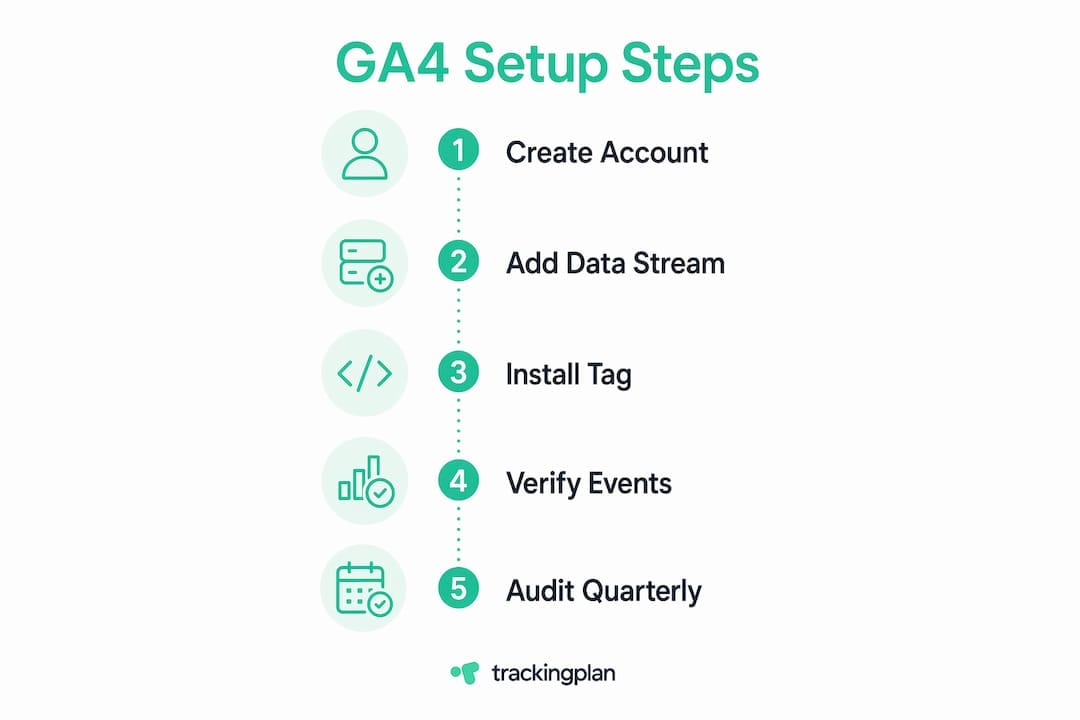
A functional GA4 property takes about 30 minutes to build from scratch. That estimate covers account creation, data stream setup, tag installation, and real-time verification. The steps below follow that sequence exactly.
-
Create your Google Analytics account. Go to analytics.google.com, sign in with a Google account, and click “Start measuring.” Name your account after your business, not a project. You will want one account per organization.
-
Create a GA4 property. Choose your reporting time zone and currency carefully. These settings affect every report you pull later, and changing them mid-year creates data gaps.
-
Add a data stream. Select Web, iOS, or Android depending on your platform. For most beginners, Web is the starting point. Enter your domain and enable Enhanced Measurement, which auto-collects scrolls, outbound clicks, video plays, and file downloads without extra code.
-
Install the Global Site Tag (gtag.js). Copy the tag from the data stream setup screen and paste it into the
<head>of every page. If you use WordPress, a plugin like Site Kit by Google handles this without touching code. -
Verify in real-time. Open GA4, go to Reports > Realtime, then visit your website in another tab. If you see yourself as an active user, the tag fires correctly.
-
Run the critical configuration steps. Configuration after installation separates reliable data from noise. Extend data retention from the default two months to 14 months under Admin > Data Settings. Create an internal traffic filter to exclude your own visits. Link Google Search Console to see organic keyword data inside GA4.
Pro Tip: Connect GA4 to BigQuery on day one. BigQuery export gives you unsampled raw event data with no retention limits, which becomes critical when you need multi-year analysis or custom queries.
What are the essential GA4 reports beginners must know?

Most beginners spend 90% of their GA4 time in four core report buckets: Acquisition, Engagement, Monetization, and Retention. Mastering these four categories answers almost every question a marketer asks about website performance.
Here is what each bucket tells you:
-
Acquisition reports show where your visitors come from. Channels like Organic Search, Paid Search, Direct, Referral, and the new AI Assistant channel all appear here. Use this to judge which marketing channels actually drive traffic.
-
Engagement reports reveal what visitors do after they arrive. Key metrics include Engaged Sessions (sessions lasting more than 10 seconds or with a conversion), Engagement Rate, and Events per Session. A high bounce rate in Universal Analytics is replaced here by a low Engagement Rate, which is a more accurate signal.
-
Monetization reports track revenue. If you run an e-commerce store or sell digital products, this bucket shows purchases, revenue per user, and item performance. For non-e-commerce sites, this section is less relevant until you set up custom monetization events.
-
Retention reports measure whether visitors come back. The User Retention chart shows how many users return on day 1, day 7, and day 30 after their first visit. Low retention often signals a content or product problem, not a traffic problem.
GA4’s Home screen also surfaces AI-powered anomaly detection. When traffic spikes or drops unexpectedly, GA4 flags it automatically. That feature saves hours of manual investigation, especially for beginners who do not yet know what “normal” looks like for their site.
Pro Tip: Use the Comparisons feature in any report to split data by device category, country, or traffic channel. It turns a single report into a multi-dimensional view without building a custom report from scratch.
Analytics proficiency directly affects business outcomes. Analytics in marketing drives measurably better ROI when teams move from gut-feel decisions to data-backed ones. The four report buckets are your starting point for that shift.
Which key events and conversions should beginners track?
GA4 runs on an event-based data model. Every user action, from a page view to a button click, is recorded as an event with associated parameters. This replaces the old session-and-pageview model from Universal Analytics.
Three event types exist in GA4:
-
Automatically collected events fire without any configuration. They include
page_view,session_start, andfirst_visit. These run the moment your tag goes live. -
Enhanced Measurement events activate when you toggle on Enhanced Measurement during data stream setup. They capture
scroll,click,video_start,video_complete, andfile_downloadautomatically. -
Custom events require manual setup through Google Tag Manager or gtag.js. Use these for actions specific to your business, like form submissions, quote requests, or account sign-ups.
Marking an event as a conversion is straightforward. Go to Admin > Conversions, click “New conversion event,” and type the exact event name. GA4 then flags every instance of that event as a conversion in your reports.
GA4 allows up to 30 active conversion events, but focusing on 3–5 key conversions reduces data noise. That limit is not a technical ceiling to fill. It is a discipline. Pick the events that directly reflect business value: a purchase, a lead form submission, a phone call click, a free trial sign-up.
Pro Tip: Audit your conversion events every quarter. Website redesigns, new landing pages, and consent banner changes all break event tracking silently. A GA4 events implementation guide gives you a repeatable framework for keeping events accurate over time.
Focusing on a small set of well-chosen conversions also aligns your team. When everyone looks at the same three numbers, debates about performance become shorter and more productive.
How do Consent Mode v2, server-side tagging, and AI traffic tracking work?
Three topics define GA4 in 2026 for anyone serious about data quality: Consent Mode v2, server-side tagging, and AI traffic attribution. Each one affects how much data you actually capture and how accurately you read it.
Consent Mode v2
Consent Mode v2 is mandatory for businesses operating in the European Economic Area (EEA). It tells GA4 how to behave when a user declines cookies. Without it, you lose conversion data from every user who opts out. With it, GA4 uses behavioral modeling to estimate conversions from non-consenting users, recovering a meaningful portion of otherwise invisible data.
Configuring Consent Mode v2 requires setting ad_storage, analytics_storage, ad_user_data, and ad_personalization parameters through your Consent Management Platform (CMP) before the GA4 tag fires. Getting this wrong means your consent banner is decorative, not functional. A detailed Consent Mode v2 audit guide walks through the exact verification steps.
Server-side tagging
Client-side tracking loses data to ad blockers, browser privacy restrictions like Intelligent Tracking Prevention (ITP), and cookie expiration. Server-side Google Tag Manager moves tag execution from the user’s browser to a server you control. For EEA businesses, server-side GTM recovers 30–35% of conversions lost to client-side tracking blocks. That is not a marginal improvement. It changes attribution models and budget decisions.
AI traffic tracking
GA4’s new AI Assistant channel, launched in may 2026, automatically categorizes traffic from ChatGPT, Gemini, and Claude using referrer headers. Before this update, AI-generated visits landed in Direct or Referral channels, inflating those numbers and hiding a real traffic source. AI-generated traffic converts up to 23 times higher than traditional organic search for some businesses. Misclassifying it means you undervalue a high-performing channel.
For traffic that still slips through, tracking LLM traffic in GA4 requires regex filters or UTM parameter strategies to catch referrals that do not carry standard headers.
| Setup layer | What it solves | When to prioritize |
|---|---|---|
| Consent Mode v2 | Legal compliance and modeled conversions in EEA | Immediately for EEA sites |
| Server-side GTM | Data loss from ad blockers and ITP | When conversion accuracy is critical |
| AI Assistant channel | Correct attribution of ChatGPT, Gemini, Claude traffic | Now, for all sites |
| BigQuery export | Unsampled data and long-term retention | Day one, before data accumulates |
Key Takeaways
Mastering GA4 requires correct setup, focused conversion tracking, and regular audits to keep data trustworthy as privacy rules and traffic sources evolve.
| Point | Details |
|---|---|
| Setup takes 30 minutes | Create account, add data stream, install tag, verify in real-time, then configure retention and filters. |
| Four report buckets cover most needs | Acquisition, Engagement, Monetization, and Retention answer the core questions about visitors and behavior. |
| Limit conversions to 3–5 events | Fewer, well-chosen conversions reduce noise and keep teams focused on what drives business value. |
| Consent Mode v2 is not optional | EEA sites must configure it correctly or lose conversion data from every user who declines cookies. |
| AI traffic needs dedicated tracking | GA4’s AI Assistant channel now categorizes ChatGPT, Gemini, and Claude traffic, fixing a major attribution gap. |
What I have learned from watching beginners use GA4
The biggest mistake I see beginners make is treating GA4 as a one-time installation. They set it up, verify the tag fires, and then check reports occasionally without ever revisiting the configuration. That approach works for about three months. Then a site redesign moves a form, a consent banner update changes how tags fire, or a new campaign uses UTM parameters that break channel groupings. Data accuracy degrades silently because nothing breaks loudly enough to trigger an alert.
The second mistake is chasing every metric in the interface. GA4 surfaces dozens of dimensions and hundreds of event parameters. Beginners often build dashboards with 20 metrics and then cannot explain what any of them mean for the business. The four report buckets exist precisely because most questions reduce to: where did visitors come from, what did they do, did they buy, and did they come back?
What actually works is a quarterly audit habit. Every three months, check that your conversion events still fire correctly, your internal traffic filter still covers your office IP addresses, and your Consent Mode configuration matches your current CMP version. Thirty minutes per quarter prevents months of corrupted data.
The 2026 AI traffic update changes the game for content marketers. If you publish articles, guides, or tools that get cited by AI assistants, that traffic is now measurable and attributable. Treating it like any other organic channel misses the point. AI-referred visitors often arrive with high intent because they asked a specific question and your content answered it. That behavioral pattern deserves its own analysis, not a footnote in the Direct channel.
GA4 is not a reporting tool you check. It is a measurement system you maintain. The teams that get the most from it are the ones that schedule time to review and update it, not just read from it.
— David
How Trackingplan keeps your GA4 data accurate
GA4 setup is only as good as the monitoring behind it. Trackingplan provides automated monitoring of digital analytics implementations, including GA4, detecting tagging errors, missing events, schema mismatches, and broken pixels before they corrupt your reports.
Trackingplan’s web tracking monitoring runs continuously, sending real-time alerts via Slack, email, or Teams when something breaks. For teams managing Consent Mode v2 compliance or server-side tagging configurations, Trackingplan flags anomalies that manual checks miss. If you want your GA4 data quality to hold up under audits and business decisions, automated monitoring is the layer that makes it reliable.
FAQ
How long does a Google Analytics crash course take to complete?
A focused google analytics crash course covering setup, core reports, and event tracking takes roughly 2–4 hours to work through. Practical setup on a live site adds another 30 minutes for tag installation and verification.
What is the difference between GA4 and Universal Analytics?
GA4 uses an event-based data model instead of session-and-pageview tracking. Universal Analytics was sunset in july 2023, making GA4 the only supported Google Analytics platform.
How many conversions should I track in GA4?
GA4 supports up to 30 active conversion events, but 3–5 focused conversions reduce reporting noise and keep teams aligned on what drives real business value.
Do I need Consent Mode v2 if my site is not in Europe?
Consent Mode v2 is mandatory for EEA-based businesses, but sites with any European traffic benefit from configuring it to maintain conversion modeling and avoid legal exposure under GDPR.
What is the AI Assistant channel in GA4?
GA4’s AI Assistant channel, launched in may 2026, automatically categorizes traffic from AI tools like ChatGPT, Gemini, and Claude using referrer headers, fixing the misclassification that previously inflated Direct traffic numbers.