
TL;DR:
- Google Analytics events track individual user interactions and system occurrences within GA4.
- Proper implementation follows a hierarchy from automatic to recommended and custom events for accurate data.
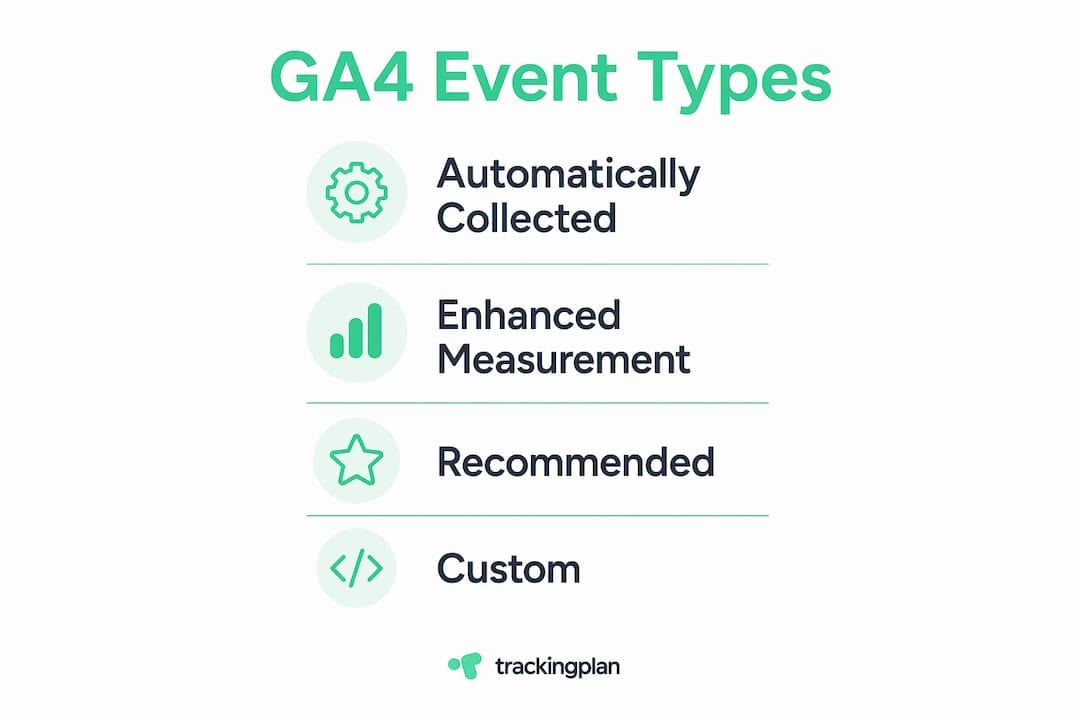
Google Analytics events are defined as discrete user interactions or system occurrences tracked as individual data points within Google Analytics 4 (GA4). Every click, scroll, form submission, and video play registers as an event, making events the core unit of measurement in GA4’s event-based data model. GA4 recognizes four event categories: Automatically Collected, Enhanced Measurement, Recommended, and Custom. Understanding these categories is the difference between a tracking setup that generates noise and one that drives real decisions.
What are the four types of Google Analytics events?
GA4’s event model replaces the old Universal Analytics session and pageview hierarchy with a flat structure where every interaction is an event with attached parameters. That shift gives you far more flexibility, but it also demands more planning upfront.

Automatically Collected events fire without any configuration. GA4 records page_view, session_start, first_visit, and user_engagement the moment you install the GA4 tag. These events form your baseline data and require zero developer effort.
Enhanced Measurement events track common interactions by toggling switches in the GA4 Admin console. No manual tagging required. The list includes scroll depth at 90%, outbound clicks, site search queries, file downloads, video engagement, and form submissions. Enabling these takes under two minutes and covers most standard content interactions.
Recommended events carry predefined names aligned to specific business verticals. Retail, travel, and ecommerce sites each have their own recommended event sets. Using Google’s predefined names for these events unlocks special GA4 reports, audience suggestions, and predictive metrics that custom event names cannot access. That alone makes recommended events worth prioritizing over custom alternatives whenever a match exists.
Custom events cover anything not handled by the first three categories. You define the name and parameters entirely. The trade-off is that custom events receive no native GA4 reporting benefits and require more maintenance.
| Event type | Setup effort | Naming control | Unlocks native GA4 reports |
|---|---|---|---|
| Automatically Collected | None | Fixed | Yes |
| Enhanced Measurement | Toggle in Admin | Fixed | Yes |
| Recommended | Code or GTM | Predefined | Yes |
| Custom | Code or GTM | Full control | No |
How to implement and configure GA4 events effectively
Setup complexity scales with event type. Start with what GA4 gives you for free, then layer in additional tracking only where the data justifies it.
-
Enable Enhanced Measurement first. Go to GA4 Admin, select your data stream, and toggle on the interactions you need. Scroll tracking, outbound clicks, and file downloads are active in seconds. This step alone covers a large portion of standard content site tracking.
-
Use Google Tag Manager for recommended and custom events. Google Tag Manager is the preferred method for implementing these event types because it separates tag logic from site code, making updates and testing faster. Avoid hardcoding
gtag.jscalls directly into page templates unless your team has a strong reason to do so. -
Follow snake_case naming for all custom events. GA4 custom event names use snake_case and do not support the old Universal Analytics category, action, and label fields. A name like
pdf_downloadis correct. A name likePDF Downloadwill cause inconsistencies in your reports. -
Respect the hard limits. GA4 enforces a maximum of 500 unique event names, 25 parameters per event, and a 100-character limit per parameter value. Hitting these limits mid-project creates serious reporting gaps that are difficult to fix retroactively.
-
Validate with DebugView and Realtime. GA4’s DebugView report shows events as they fire during testing. Realtime confirms live traffic. Use both before pushing any new event implementation to production.
Pro Tip: Document every event name, parameter, and expected trigger condition in a shared spreadsheet before writing a single line of code. Teams that skip this step almost always end up with duplicate events and naming inconsistencies that corrupt long-term data.
GA4 also offers a no-code option for simple customizations. The Create event feature lets you build new events based on existing ones directly inside the GA4 interface. For example, you can create a thank_you_page_view event derived from the standard page_view event by filtering on the page URL. No additional code deployment needed.
Best practices for planning your event tracking strategy
The biggest mistake teams make when moving to GA4 is trying to replicate their Universal Analytics setup. Replicating the UA category/action/label scheme is counterproductive. GA4’s parameter system is more flexible and more business-relevant when used correctly.
Follow the implementation hierarchy as your planning framework:
- Start with Automatically Collected events. Accept what GA4 gives you.
- Enable Enhanced Measurement for standard content interactions.
- Map your key business actions to Recommended events before reaching for custom ones.
- Use Custom events only for interactions that have no recommended equivalent.
This order matters because it keeps your event count low, your data compatible with GA4’s native features, and your maintenance burden manageable.
Choosing meaningful event names and parameters is equally critical. A parameter like content_type with values such as blog, case_study, or product_page gives you segmentation power that a generic page_category parameter does not. Think about how you will filter and group data in reports before you name anything.
Pro Tip: Build your event taxonomy in a spreadsheet with columns for event name, trigger condition, parameters, expected values, and the business question each event answers. Review it quarterly. Events that no longer map to a business question are candidates for removal.
Practitioners transitioning from Universal Analytics must also accept that pageviews and sessions are now events too. That mental shift changes how you think about funnels, attribution, and audience building. GA4 is more flexible, but that flexibility only pays off when your event plan is deliberate.
How to analyze and act on event data in GA4
Event data becomes useful when it connects directly to business outcomes. Raw event counts tell you what happened. Parameters tell you why and to whom.
Start with GA4’s built-in reports. The Events report under Engagement shows total event counts and unique users per event. Pair this with the Funnel Exploration report to see where users drop off between key events. For ecommerce sites, tracking events like add_to_cart, begin_checkout, and purchase in sequence reveals exactly where revenue is lost.
Linking events to conversions is straightforward. Mark any event as a conversion inside GA4 Admin, and it immediately appears in your Conversions report and feeds into campaign attribution. Tracking a pdf_download or demo_request_submitted event as a conversion gives your paid media team accurate cost-per-conversion data without any additional tagging.
Use custom parameters for granular segmentation. An article_author parameter on a scroll event tells a content team which writers hold attention longest. A product_category parameter on add_to_cart tells a merchandising team which categories convert. The tracking implementation guide from Trackingplan covers how to structure these parameters for clean attribution across channels.
Continuous auditing keeps your event data reliable. Events break silently. A site redesign removes a button. A tag fires twice after a CMS update. Scheduling a monthly review of your top conversion events catches these issues before they distort campaign decisions. Trackingplan automates this process by monitoring event schemas in real time and alerting your team when something changes unexpectedly.
For a deeper look at event tracking on Google Analytics, Trackingplan’s blog covers the full range of GA4 event types with practical examples for marketers at every level.
Key Takeaways
Effective GA4 event tracking requires a deliberate hierarchy, strict naming conventions, and continuous monitoring to produce data that actually drives decisions.
| Point | Details |
|---|---|
| Follow the event hierarchy | Implement automatic, then enhanced, then recommended, then custom events for cleaner data. |
| Respect GA4’s hard limits | Plan for 500 unique event names and 25 parameters per event before you start building. |
| Use recommended events first | Predefined recommended event names unlock native GA4 reports and predictive metrics. |
| Validate before going live | Use DebugView and Realtime reports to confirm every event fires correctly during testing. |
| Audit continuously | Silent tracking failures corrupt attribution data; schedule regular reviews of key events. |
Why most GA4 event setups fail within six months
The teams I see struggle most with GA4 are not the ones who lack technical skill. They are the ones who treated event setup as a one-time project rather than an ongoing practice. They launched with a solid taxonomy, then let it drift as the site evolved, new campaigns launched, and developers pushed updates without checking the tag layer.
The shift from Universal Analytics to GA4 was genuinely difficult. The old model was forgiving. You could dump everything into category, action, and label fields and still get usable data. GA4 is less forgiving precisely because it is more powerful. If your event names are inconsistent or your parameters are misused, the data in your funnels and audience segments is wrong in ways that are hard to detect without active monitoring.
The trend I find most encouraging is AI-assisted event analysis. GA4’s predictive metrics already use event data to forecast purchase probability and churn likelihood. But those predictions are only as good as the underlying events. Teams that invest in data quality for analytics tools get better predictions, better audiences, and better attribution as a direct result.
My honest recommendation: treat your event taxonomy as a living document, assign someone ownership of it, and connect your GA4 implementation to an automated monitoring layer. The cost of bad event data is not just bad reports. It is bad ad spend, bad product decisions, and bad revenue forecasts built on numbers nobody questioned.
— David
Trackingplan and GA4 event quality
Accurate event tracking is only as reliable as the system watching over it.
Trackingplan monitors your GA4 event implementations in real time, detecting schema mismatches, missing events, duplicate fires, and parameter errors the moment they appear. When a site update breaks your purchase event or a campaign misconfiguration sends malformed parameters, Trackingplan sends an alert to Slack, Teams, or email before the data loss compounds. For teams managing web tracking monitoring across multiple properties or clients, that automated layer replaces hours of manual QA with instant, specific alerts. Your event data stays accurate, your attribution stays clean, and your team spends time on analysis rather than debugging.
FAQ
What are Google Analytics events in GA4?
Google Analytics events are discrete user interactions or system occurrences recorded as individual data points in GA4. Every action, from a page view to a button click, is tracked as an event with attached parameters.
How many custom event names can GA4 handle?
GA4 enforces a hard limit of 500 unique event names per property, with a maximum of 25 parameters per event. Exceeding these limits causes data to stop recording for new events.
Do I need code to track events in GA4?
Not always. Automatically Collected events require no code, and Enhanced Measurement events activate with a toggle in GA4 Admin. Recommended and custom events typically require Google Tag Manager or gtag.js.
What is the difference between recommended and custom events?
Recommended events use Google-predefined names tied to specific business verticals and unlock native GA4 reports and predictive metrics. Custom events use names you define but receive no native reporting benefits.
How do I verify that my GA4 events are firing correctly?
Use GA4’s DebugView report during setup to see events fire in real time, and check the Realtime report to confirm live traffic. Both tools are available directly inside the GA4 interface without additional software.