Welcome to your one-stop-shop to deep dive into your warnings, understand them better, and collaborate with your team to get them fixed in record time!
Warning Dashboard
Your Warning Dashboard (Overview Tab) serves as a central hub for managing all your warnings. This feature provides you with a comprehensive view of all your warnings within your analytics providers, helping you proactively monitor them for quick issue resolution.
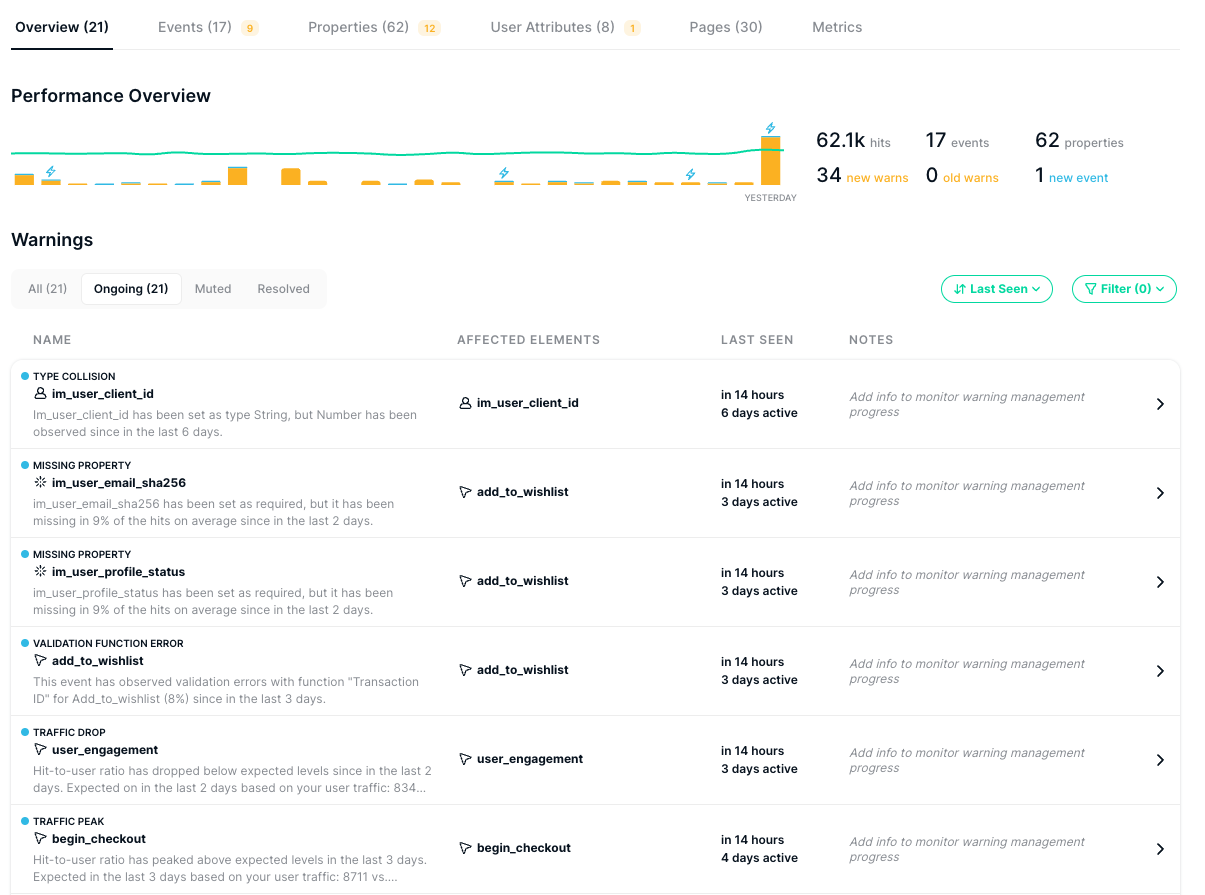
Learn more about Trackingplan’s Warning Dashboard here.
Warning Management View
After having identified all the warnings threatening to undermine the quality of our data, it’s time to take action. For it, accessing your Warning Management View is as simple as clicking on the warning you want to investigate.

Let’s have a look at all the things you’ll be able to see and manage, which processes slightly vary depending on the different types of warnings Trackingplan automatically notifies you about.
Managing Traffic Warnings
When it comes to Traffic Warnings, we've got you covered with a tailored view designed to address the unique challenges associated with managing traffic-related issues.
- Daily Traffic Chart: This chart will show you the event’s traffic evolution, including warnings triggered based on either the threshold inferred from your user traffic or your manual configuration.
- Customize Traffic Tolerences: Your Warning Management View also allows you to tailor the threshold at which your traffic warnings trigger. For it, you’ll be able to choose among the following tolerances:
- Low: Ideal for critical events, triggering alerts at the slightest variation.
- Medium: Balanced monitoring, ensuring reliable tracking without excessive notifications.
- High: Best for non-critical events, alerting only on major changes.
- Notes: You can also add any relevant information in the description box to track the warning progress for seamless collaboration within your team.
- More Info: Here’s where you can learn more about the elements affected by the warning, such as getting more context about the environment, the app version, the source, or the release number in which the warning has been spotted.
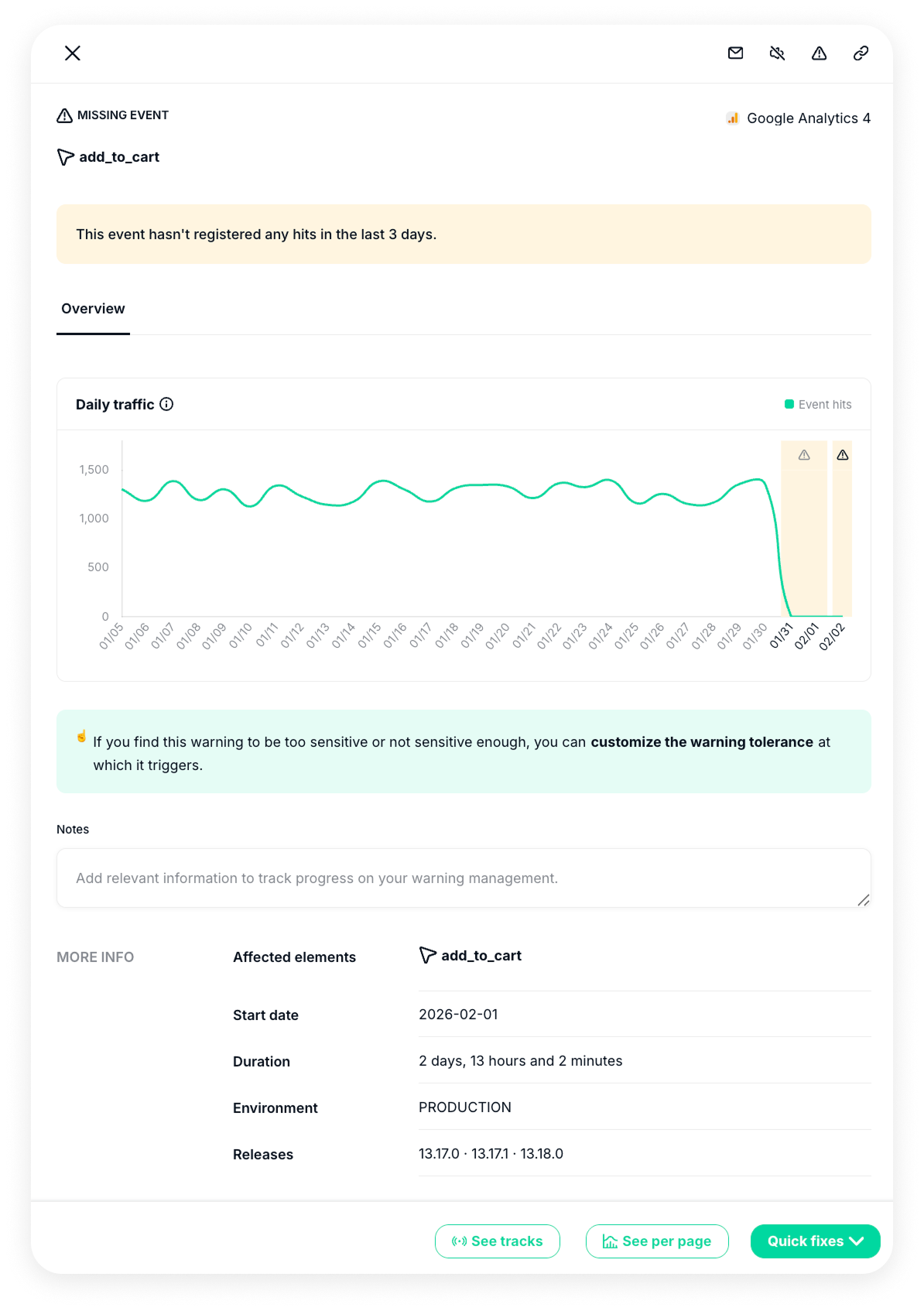
Moreover, at the bottom of your Warning Management View, these are the buttons you’ll see when managing traffic-related issues:

- See Tracks: Here’s where you’ll be able to download a sample payload of the warning with the data layer of that event to get the real picture of what the browser captured when the event was triggered.
- See per page: Here’s where you’ll be able to explore the correlation between the detected traffic warning and the pages at which it triggers.
- Quick Fixes: Finally, you’ll also have the option to fix your warnings and take immediate action directly from your Warning Management View. Watch the video to see it in action:
Managing Specification Warnings
Specification Warnings also require different needs, and that is why your Warning Management view will change slightly because of it.
Here you will find two different tabs: Overview and Warning Analysis.
Overview
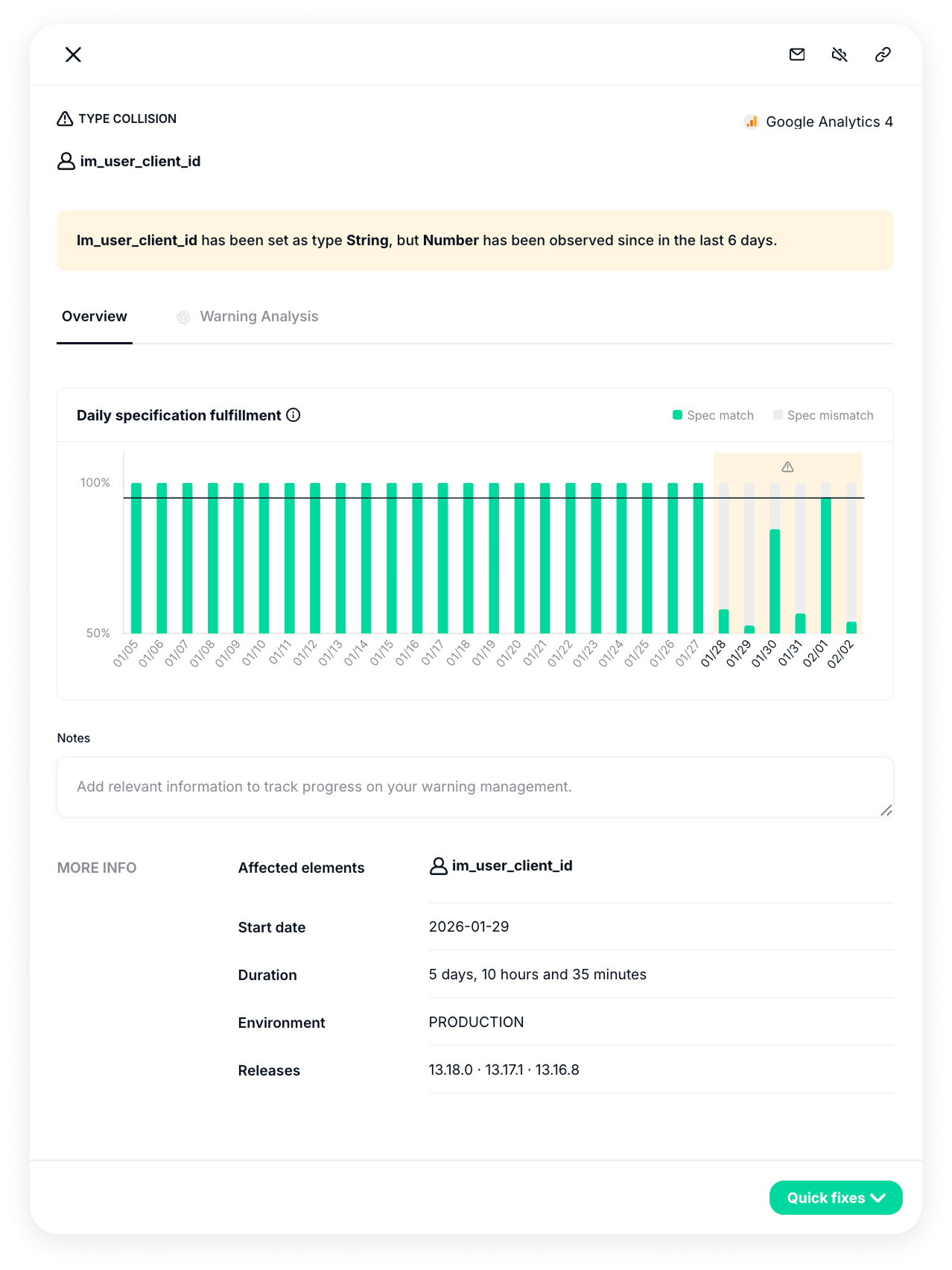
Inside the Overview Tab, you’ll find the following information:
- Daily Specification Fulfillment Chart: Here, the chart provided in your Warning Management View won’t focus on the event’s traffic evolution, but on the daily rates of specification matches vs. mismatches. That is, on the way your events have fulfilled their specifications or not on a daily basis.
- While exploring your specification warnings, you’ll also be able to easily check if someone within your team or our support team edited any of your specs. This will help you stay on top of changes and keep your team in sync with just a glance.
- Notes: Similarly, you’ll also be able to include any pertinent details in the description box to monitor the advancement of the warning and ensure all team members are aligned about its progress.
- More Info: Here’s where you can learn more about the elements affected by the warning, such as getting more context about the environment, the app version, the source, or the release number in which the warning has been spotted.
Warning Analysis (AI Debugger)
Trackingplan’s AI Debugger transforms raw debug warning data into clear, human-readable explanations, helping analysts quickly understand specification warnings, interpret their cause, and take action without hours of manual investigation.
By default, all AI features are disabled and opt-in. You can activate them at any time from the AI Features settings.
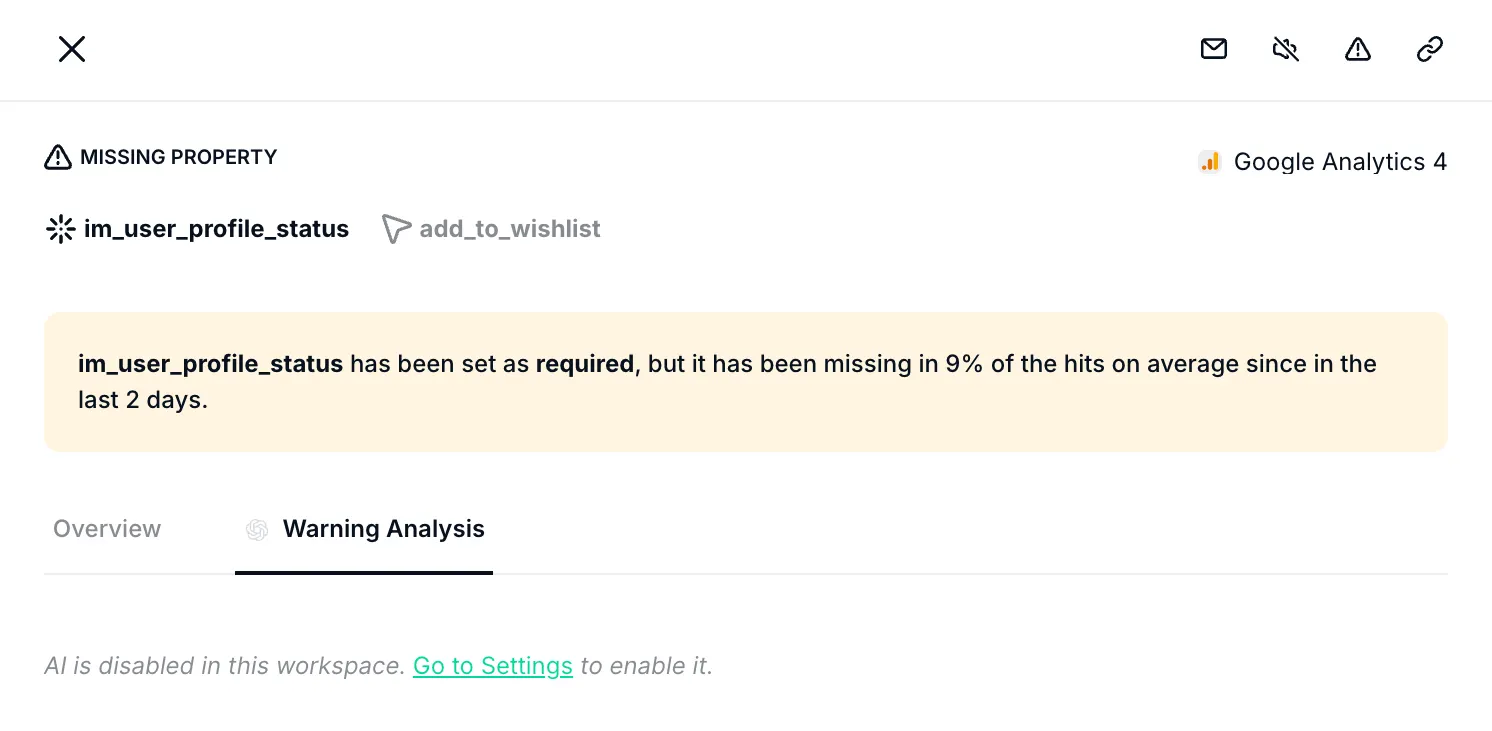
If activated, for each warning, an AI agent will generate, in seconds, a human-readable explanation based on your debug warning data. These explanations include:
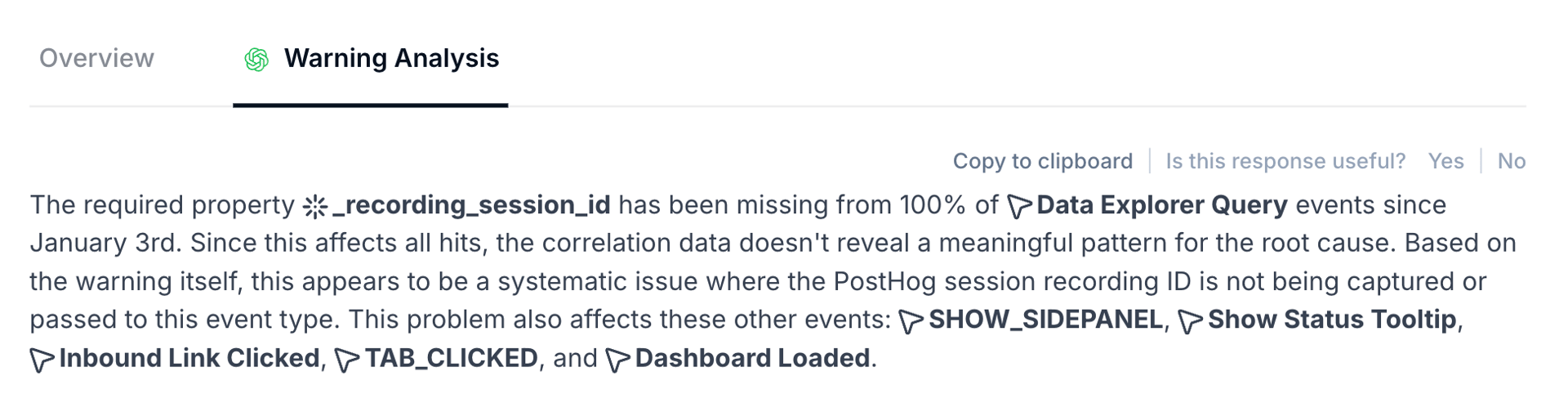
- Summary: A high-level overview of the issue, combining all relevant debug warning data into a single, easy-to-understand explanation.
- Hypothesis: A clear interpretation of the most likely root cause, written in plain language to make it easy to understand and communicate.
- Potential Impact: An estimation of the possible business impact of the warning. Instead of looking at the issue only from a technical perspective, it helps you understand what this problem could mean for performance—for example, how it might affect ROAS, conversions, campaign attribution, or data reliability.
By translating tracking issues into potential business consequences, this context makes it easier to prioritize what needs to be fixed first based on the real impact if left unresolved.
This is also especially useful when you need to communicate the value of your work to others. If you work in an agency or collaborate with stakeholders, this explanation can help you proactively show what you have prevented or mitigated. For example, you can clearly explain that a misconfigured tag or missing event could have led to incorrect campaign optimization or misleading reporting, indicating that it was identified and resolved before causing larger issues.
- Recommended actions: Actionable suggestions on what to review or fix, based on the detected warning patterns.
- When it happens: A concise summary of when and under which conditions the issue occurs, derived directly from Trackingplan’s Warning Debug.
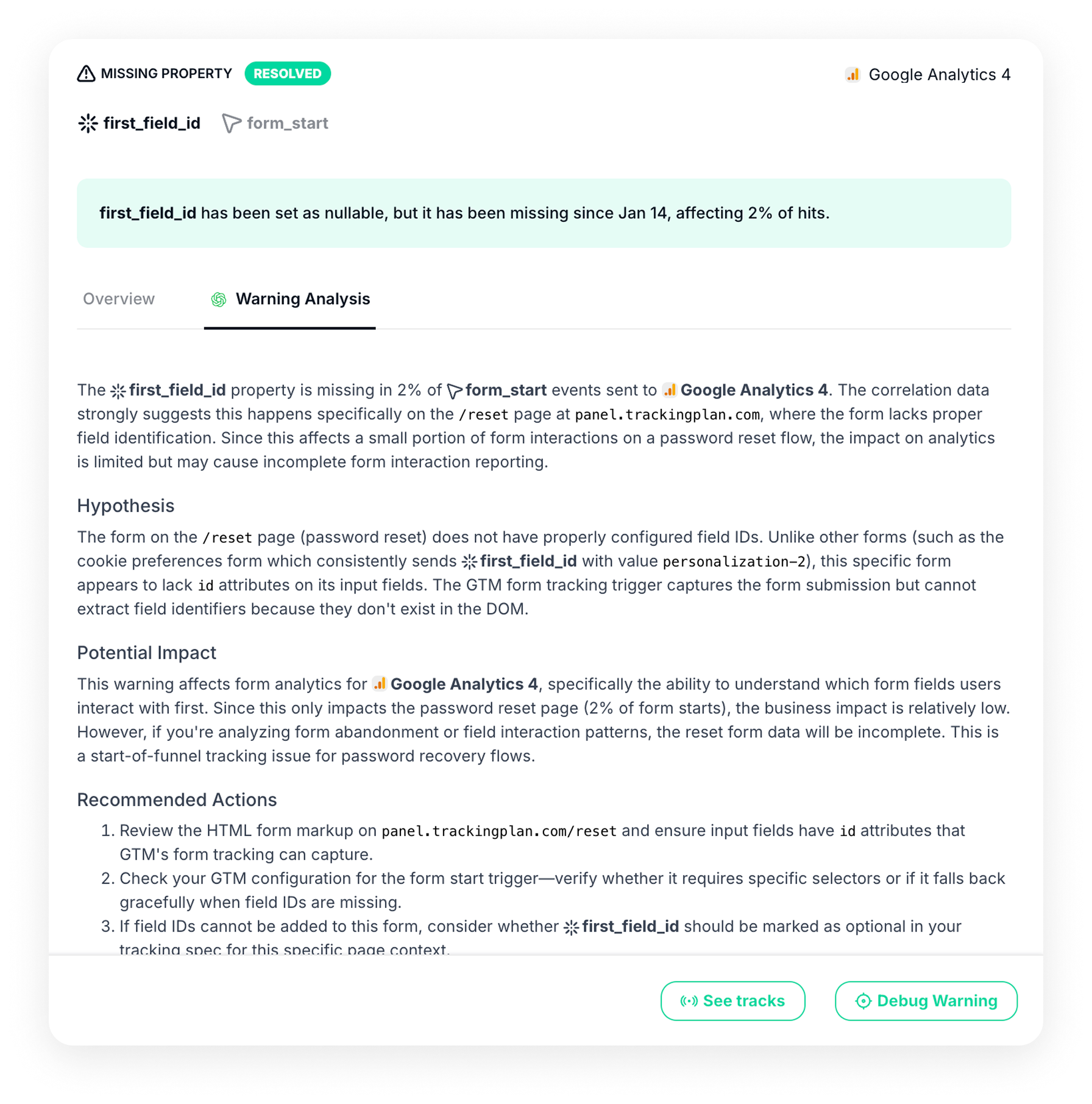
All AI-generated insights can be copied to the clipboard for ready-to-use tickets or direct sharing with the developer or person responsible for fixing the issue, without having to rewrite or translate technical details. Users can also provide feedback on each explanation, marking it as useful or not. This feedback helps improve the accuracy and relevance of AI-generated explanations over time.
For detailed information on Trackingplan’s AI Debugger and how to use it, see the official documentation.
Quick Actions for Efficient Management
At the bottom of your Warning Management View, you’ll see the following buttons when managing specification-related issues:
- See Tracks: Here’s where you’ll be able to download a sample payload of the warning with the data layer of that event to get the real picture of what the browser captured when the event was triggered.
- Debug Warning: For problems related to specification warnings, the Warning Management view will get you access to our Debug Warning View to help you find out the root cause of your warnings.
- Quick Fixes: Finally, you can also fix your warnings and take immediate action directly from your Warning Management View. Watch this video to see it in action.
Additionally, Trackingplan’s Warning Management View also introduces some useful features to streamline the way you navigate through your warnings.

- Mark as unread: Trackingplan marks unread warnings with a blue dot that disappears once the Warning Management View is opened for the first time. However, if you don’t want this to happen, you can also “Mark it as Unread”. This action will restore the blue dot, signaling to the rest of the team that the warning still requires attention.

- Mute Warning: Temporarily mute less critical warnings to focus on higher-priority tasks.
- Customize Warning: Trackingplan will always propose predefined alerts based on your business type. However, you can also configure alerts to ensure you receive warnings only when the conditions you specify are met. Doing this will allow you to customize the traffic threshold at which your traffic warnings trigger, deactivate specific warnings by their type or provider, or set tolerance percentages. Learn more about customizing warnings.
- Share Warning: Facilitate collaboration by sharing warnings with other members of your organization.