Trackingplan keeps track of the pixels that load on your site and warns you when a pixel disappears from the pages you send traffic to. To see each pixel with its consent rate and status, open Compliance > Consent > Pixels.
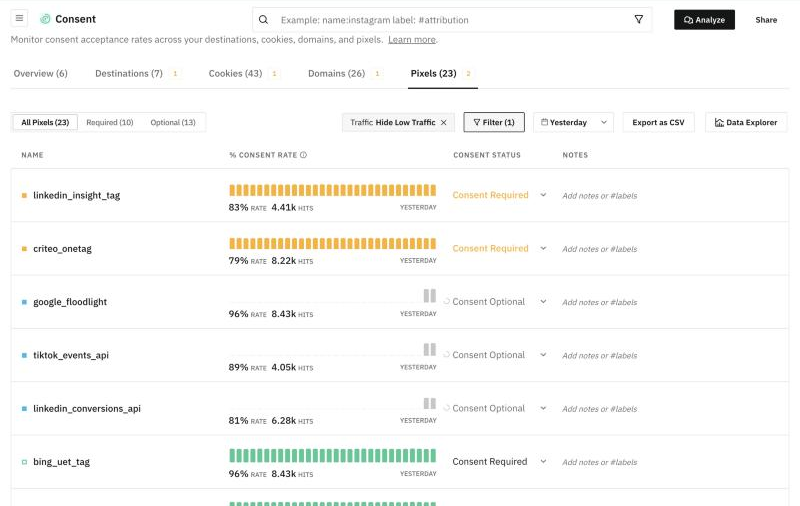
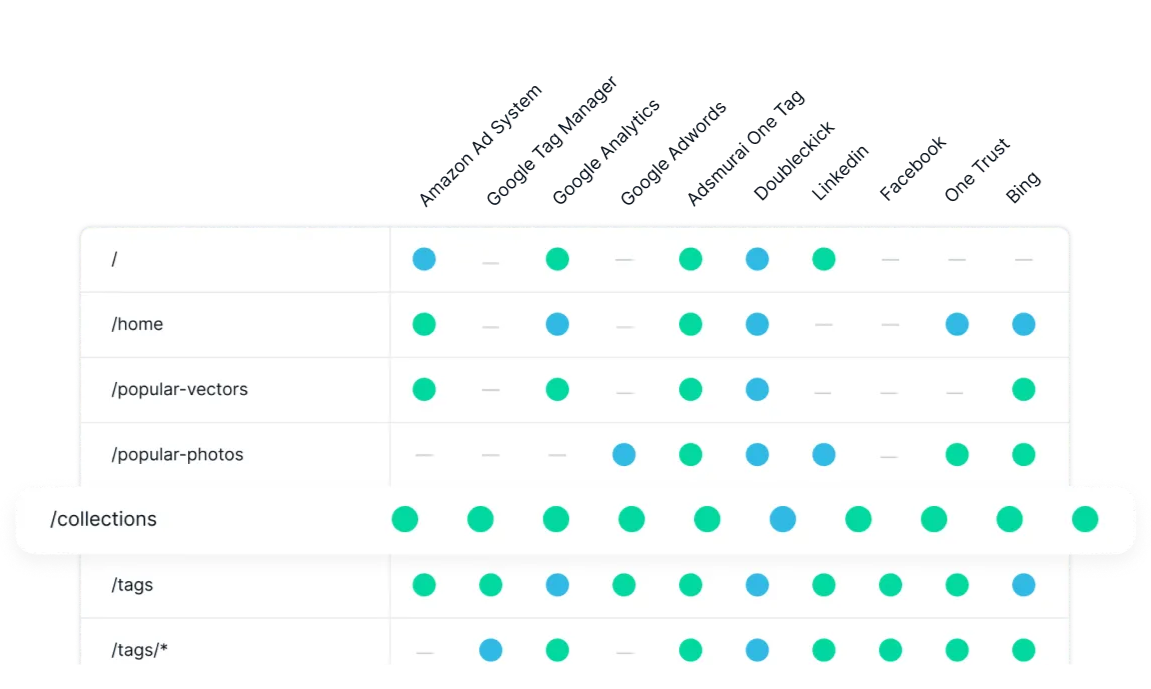
Pixels break often, and quietly: costs go up and conversions go down before anyone notices. Trackingplan keeps an eye on every pixel in your frontends and alerts you when one is gone from a page of your site or stops working altogether.
When a pixel disappears from a landing you’re paying to send traffic to, you hear about it and get it fixed before it hurts performance. Your conversions stay measured, your ROAS stays accurate, and your next campaign is planned on real numbers.

It answers questions like:
How many pixels or trackers do we have on our site?
On which pages are they triggering?
Has the Facebook Ad Conversion Pixel been removed from this landing in the last release?
Are all my pixels working in all countries?
You can also open and inspect your Pixels as a destination.
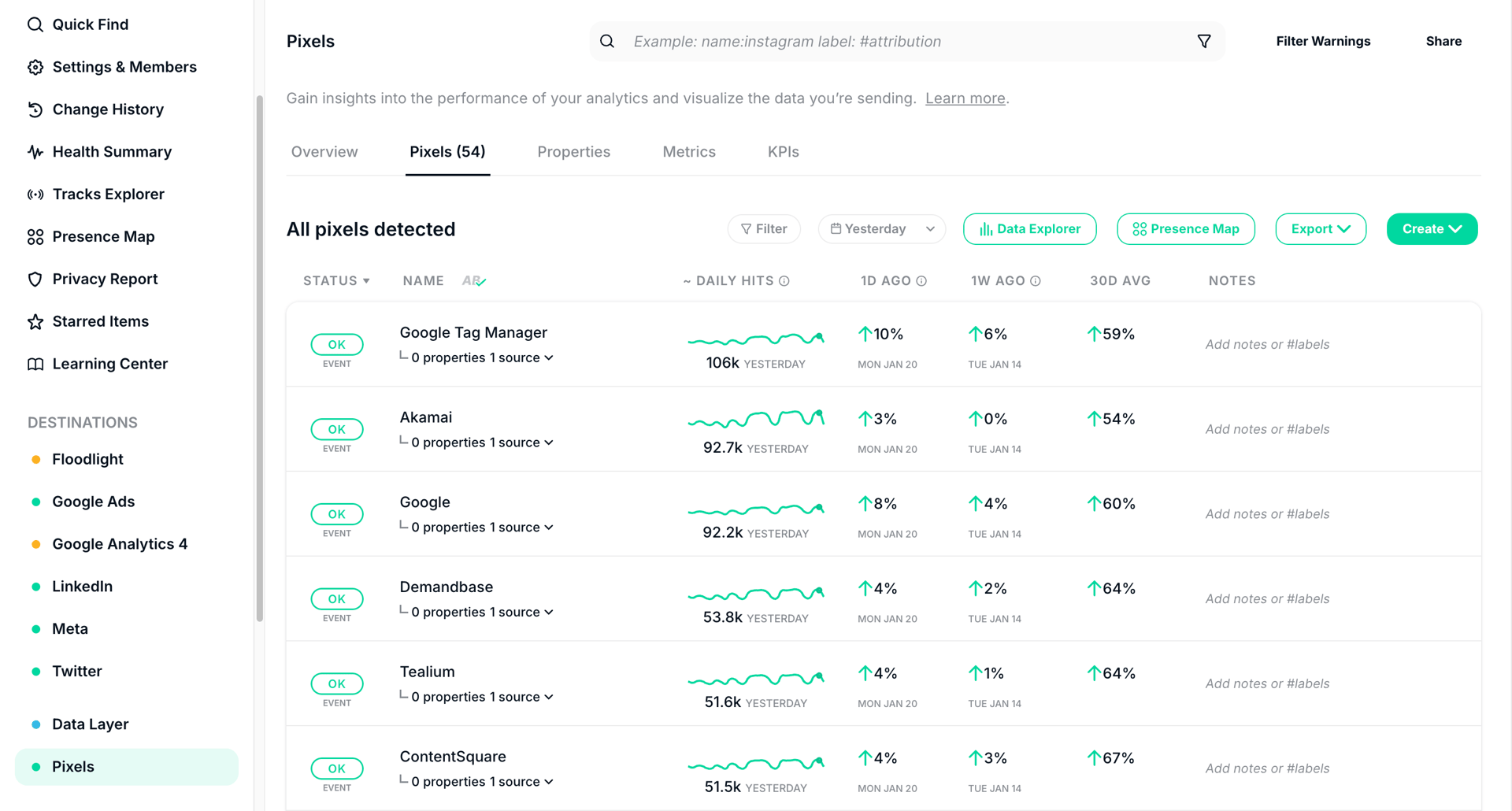
Some of the tabs you’ll find there:
- Overview tab: how your analytics and marketing pixels are doing, with every warning they have had, ongoing and past. Start here to spot what could hurt your data or your campaign performance.
- Pixels tab: every pixel Trackingplan has discovered in your frontends.
- Properties tab: the properties each pixel sends, such as event parameters or custom attributes, so you can check that essentials like
transaction_idorproduct_idarrive on every pixel. - Metrics tab: detailed metrics on how your pixels behave: events sent, success rates, or gaps in what gets through (e.g.: check that the number of
page_viewseach pixel sends matches the traffic you expect). - KPIs tab: the key performance indicators (KPIs) that matter most to your business, so you can tell your tracking supports your goals.
Because Pixels work as a destination, you can set traffic warnings on them. You get alerted when a pixel stops receiving traffic entirely, or when its traffic goes above or below a threshold you set, so you catch problems early. Traffic warning tolerances let you decide how sensitive those alerts are.