Tell Trackingplan which values you expect in your properties, events and acquisition data, and it tells you automatically whenever something doesn’t match.
Data validation works ahead of time: it catches bad values before they spread into your reports.
These are the validation methods Trackingplan supports. They check that your data arrives the way you specified and, when it doesn’t, tell you so you can fix it fast.
Data Validation techniques supported by Trackingplan:
Enums
With an Enum you list in advance the values you expect for a property. Whenever the property receives a value outside that list, you get notified.
Trackingplan already learns the type and frequency of each of your properties on its own, and it can also automatically infer enums based on your data.
Trackingplan infers Enums every day, from the values a property has received recently and how likely they are to be a fixed set. If you’d rather it didn’t, turn this off in Customize Warnings for specific events, or for your whole plan in Settings.
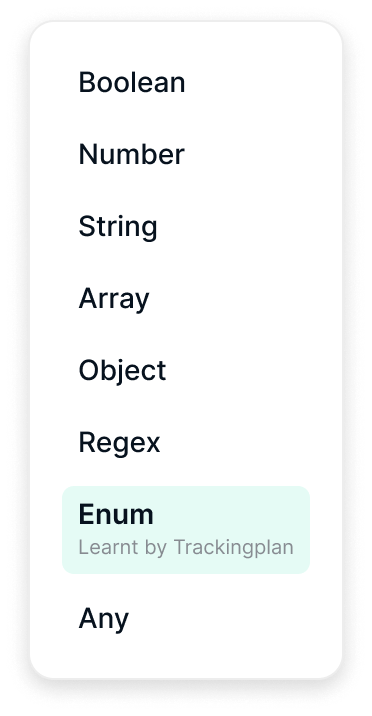
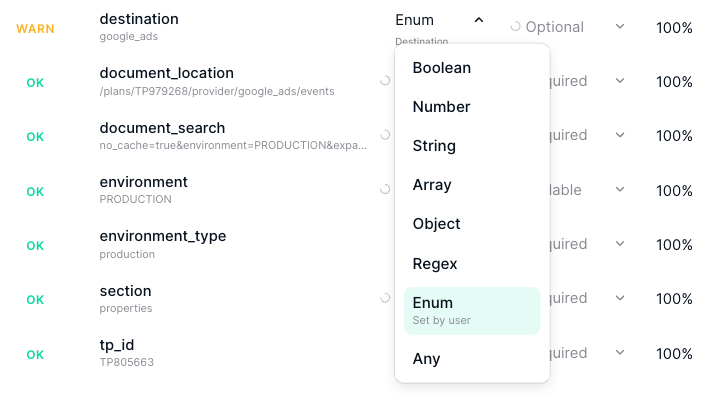
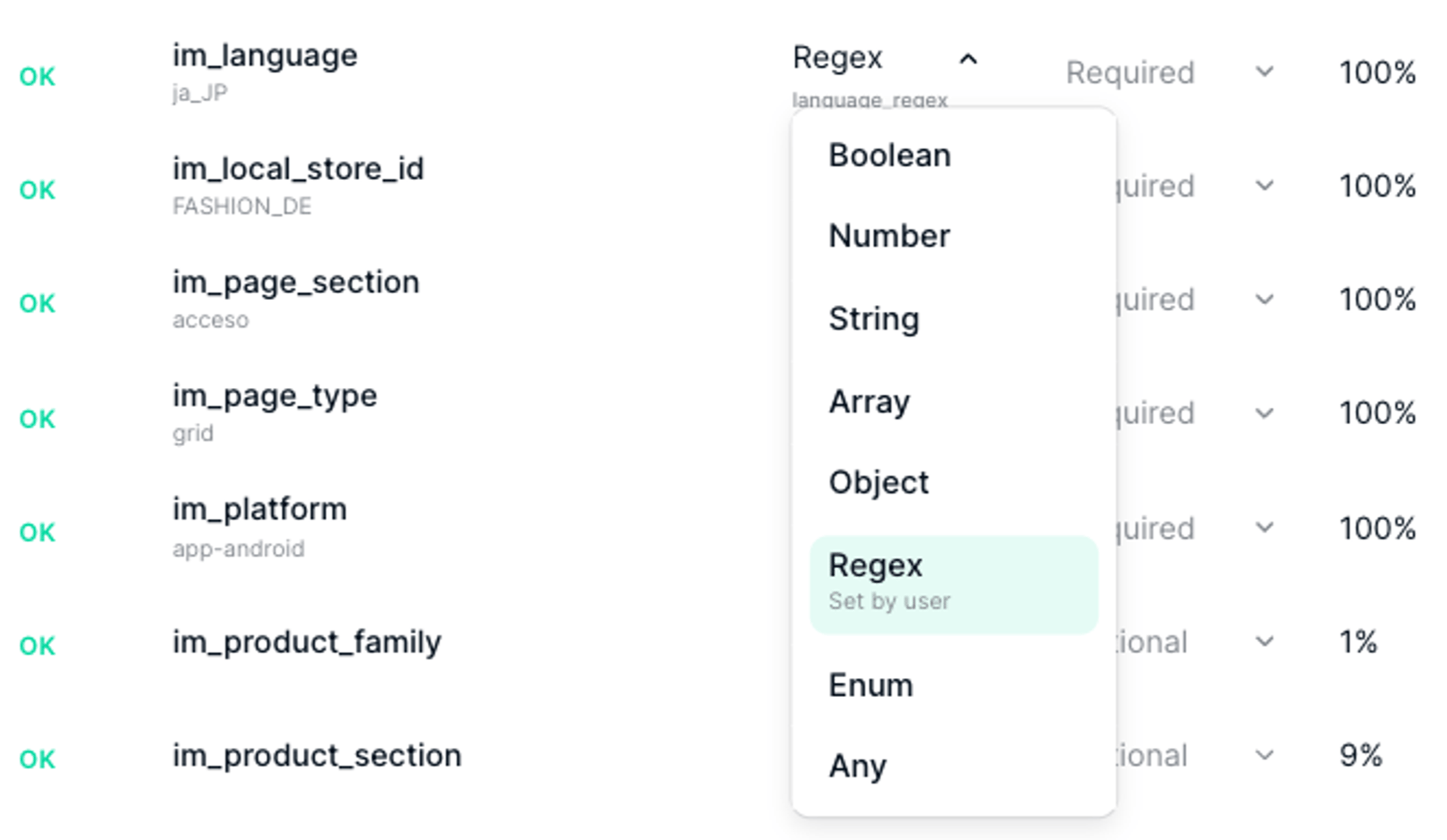
To write an Enum for a property yourself, click its type field and select Enum in the drop-down menu.
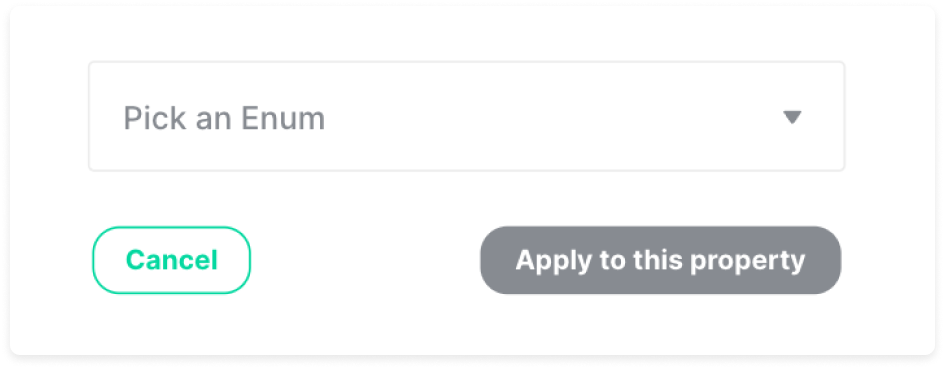
If it’s your first Enum, select Create New Enum. Otherwise, reuse one you already have: clone it as is, or edit it for this property.
In the next panel, name your new Enum and write its values. To save you the typing, you can autocomplete your Enum with the values Trackingplan has seen in that property in the last 30 days.
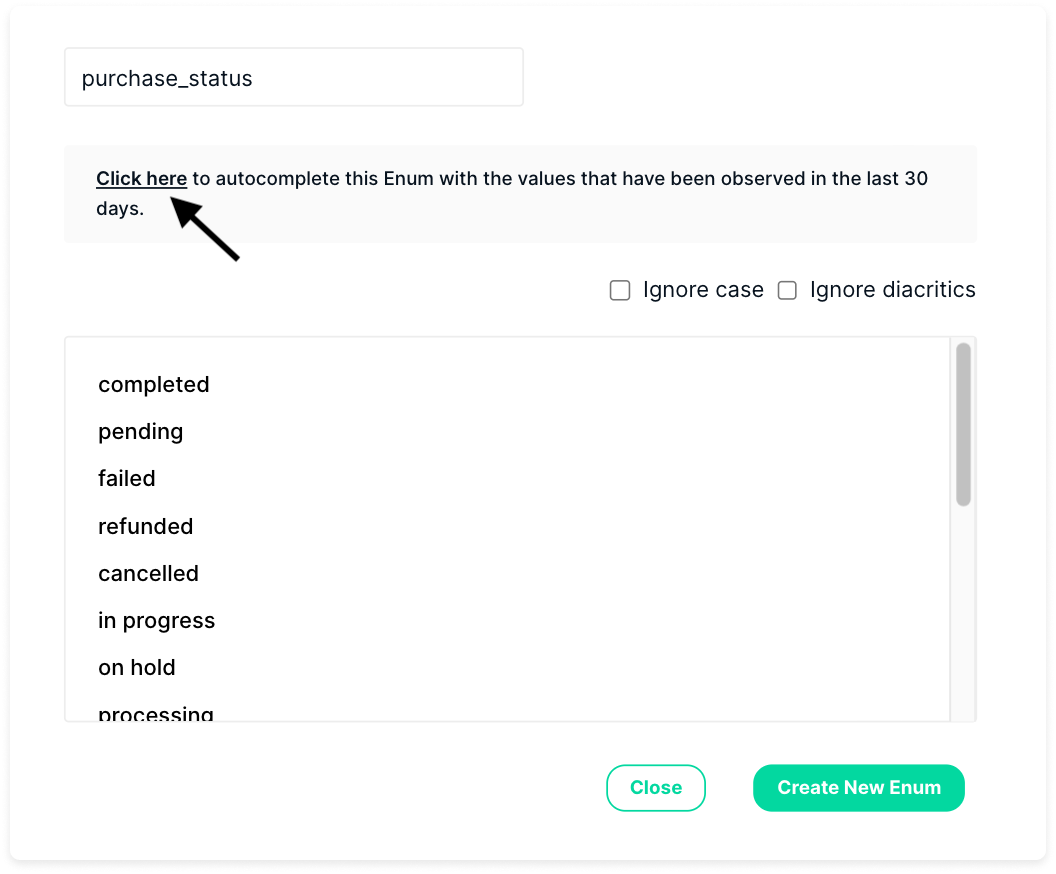
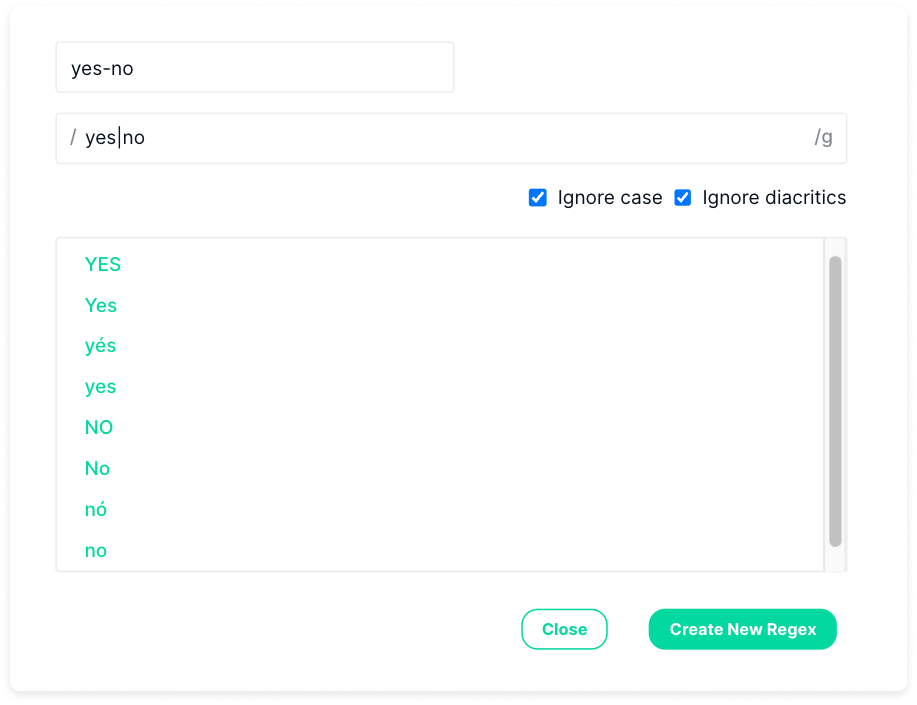
Autocomplete shows every value detected for this property in the last 30 days. Check them and delete any that are wrong. You can also ignore cases and diacritics, so variations in capitals or accents still count as valid.
When you’re happy with it, click Create New Enum. The new Enum appears in the drop-down menu. Select it and click Use on this property.
That’s it. From now on, Trackingplan checks that every value in this property matches the Enum.
If it sees a value outside the list, it sends you a warning.
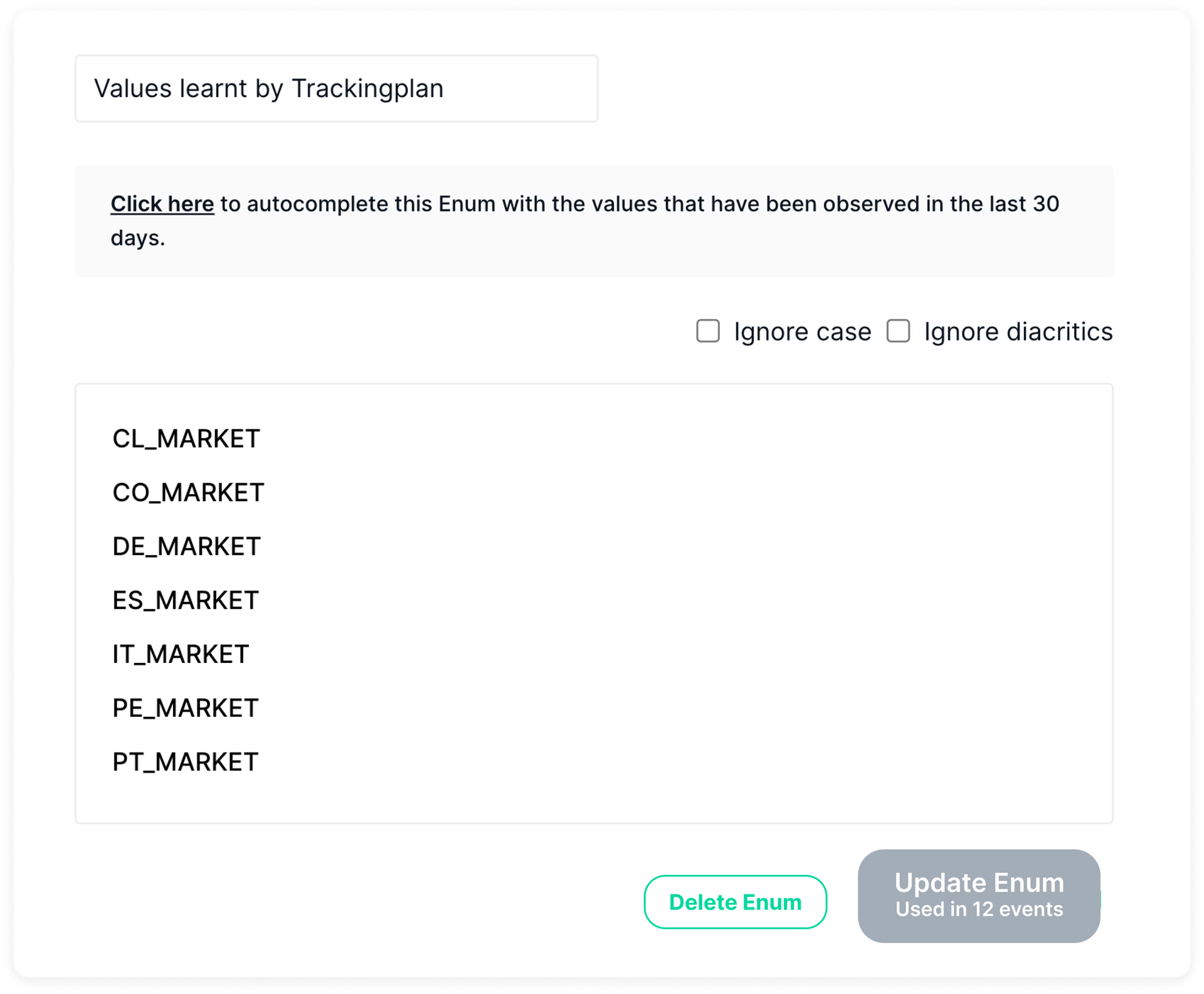
Whether you wrote an Enum yourself or Trackingplan learned it, you can edit it at any time, adding or removing values.
Use case Examples
Say Trackingplan infers an Enum after seeing a clear pattern: the list of markets you currently operate in.
When you expand into a new market, Trackingplan detects it and tells you, and you add it to the Enum in a couple of clicks.
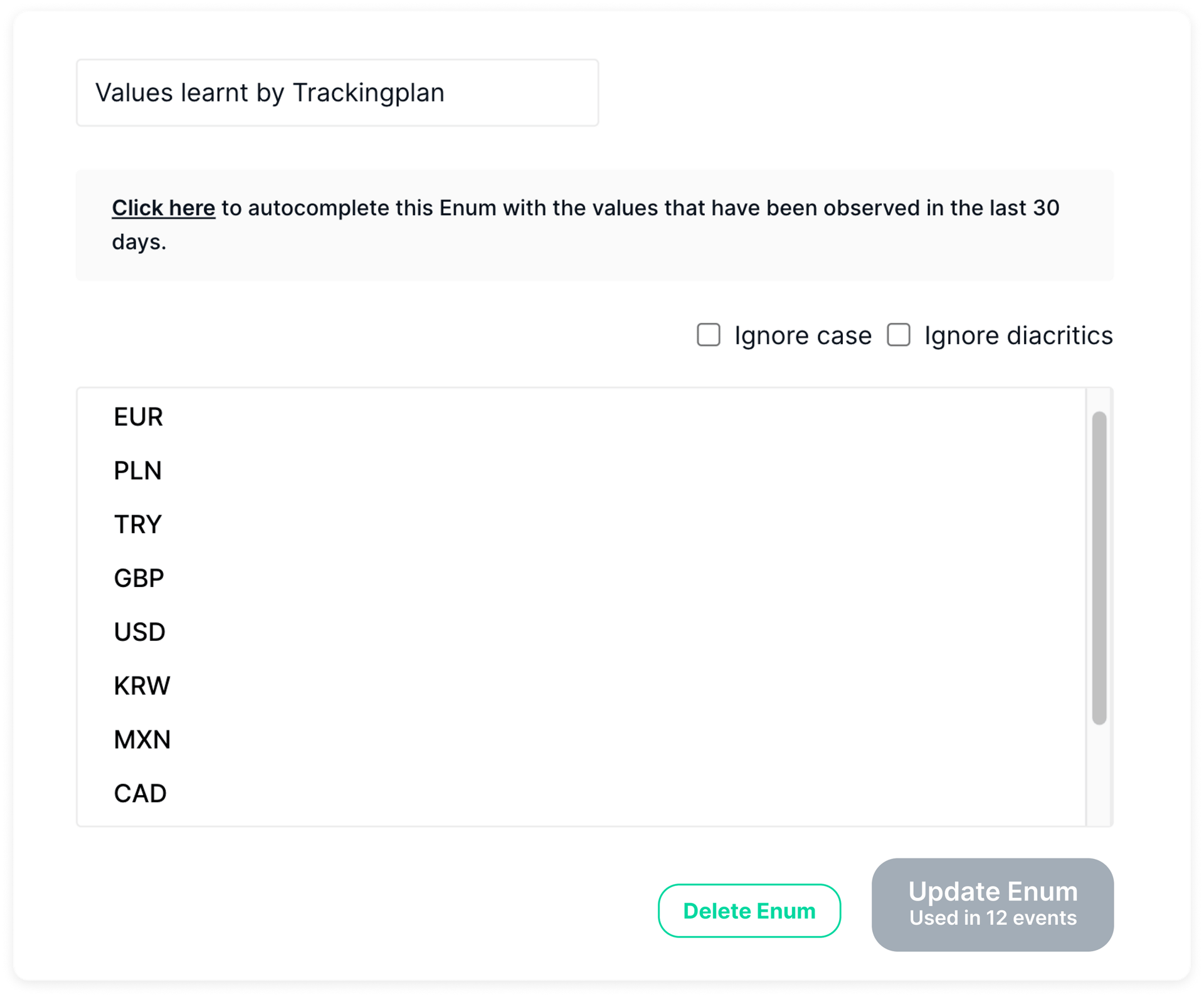
The same goes for a currency property, which usually holds a fixed list of the currencies your online stores use.
If you start accepting a new currency, Trackingplan detects it and tells you, so you can update the Enum in every event that uses that property. If you haven’t added a currency and the new value is a mistake, Trackingplan helps you spot it quickly and fix it.
RegEx (Regular expressions)
A regular expression (Regex) is a pattern that every value of a property must follow. It gives you strict, consistent validation.
You set up a Regex much like an Enum. Writing regular expressions by hand can be hard, though, especially if you haven’t done it before.
That’s why Trackingplan can automatically generate regex patterns for you: precise validations, without writing complex patterns by hand.
Here’s how to set up a regex, step by step:
- On the property you want to validate, click its type field and select Regex from the drop-down menu.
- Click Pick a Regular Expression. If it’s your first one, select Create New Regex. Otherwise, reuse one you already have: clone it as is, or edit it for this property.
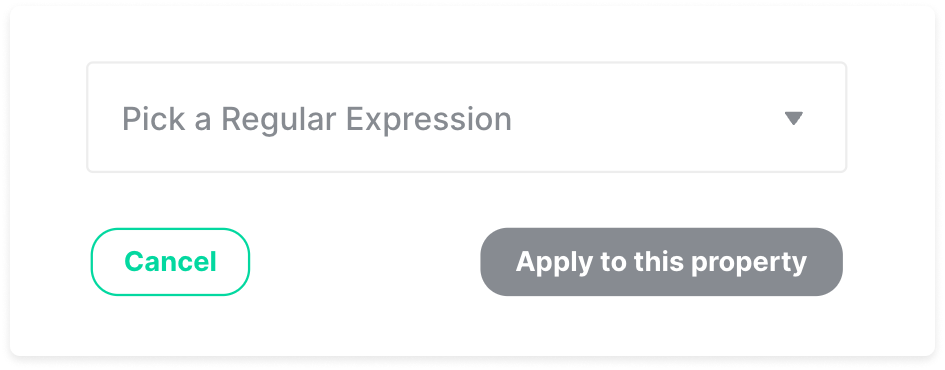
- Click “Autocomplete this Regex” to generate a pattern from the values seen in this property. Trackingplan also suggests a name for it, so you don’t have to come up with one.
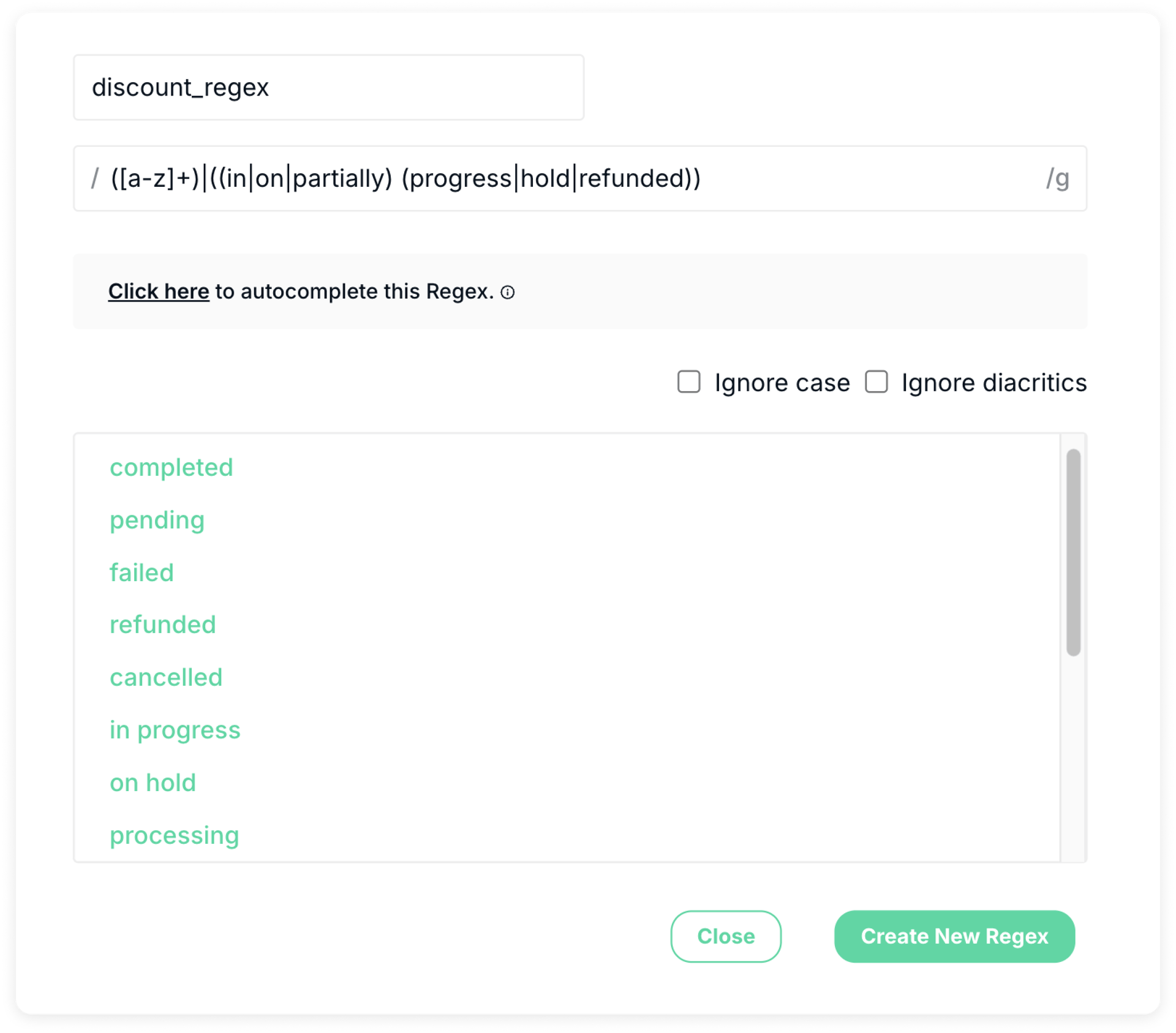
Autocomplete doesn’t send your data through AI, so your information stays private and secure.

- Review and fine-tune. The generated values go straight into the playground, where you can add more by hand if you need to.
- When you’re happy with it, click “Create New Regex”. From then on, Trackingplan checks that every value of the property matches the regular expression. If a value doesn’t, the dashboard shows you a warning.
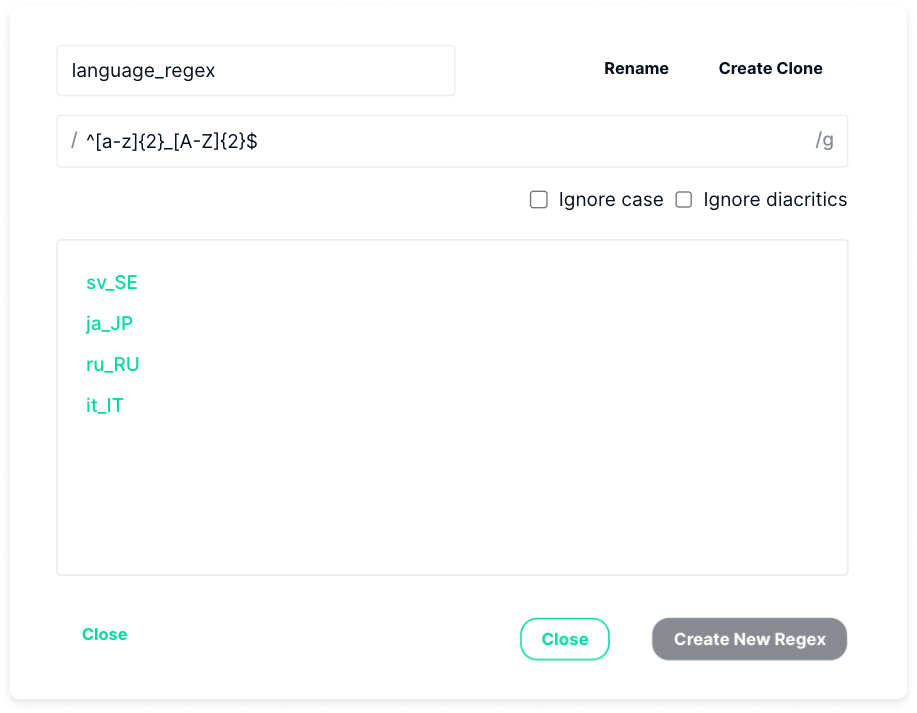
Prefer to write your Regex yourself? Name it (e.g.: language_regex) and write the pattern. Add test values to confirm it works as you expect, then click Create New Regex.
Want to test a pattern first? Try it in our regex tester.
For a Regex you can also ignore cases, diacritics or both, so a difference in capitals or accents isn’t flagged as an implementation problem.
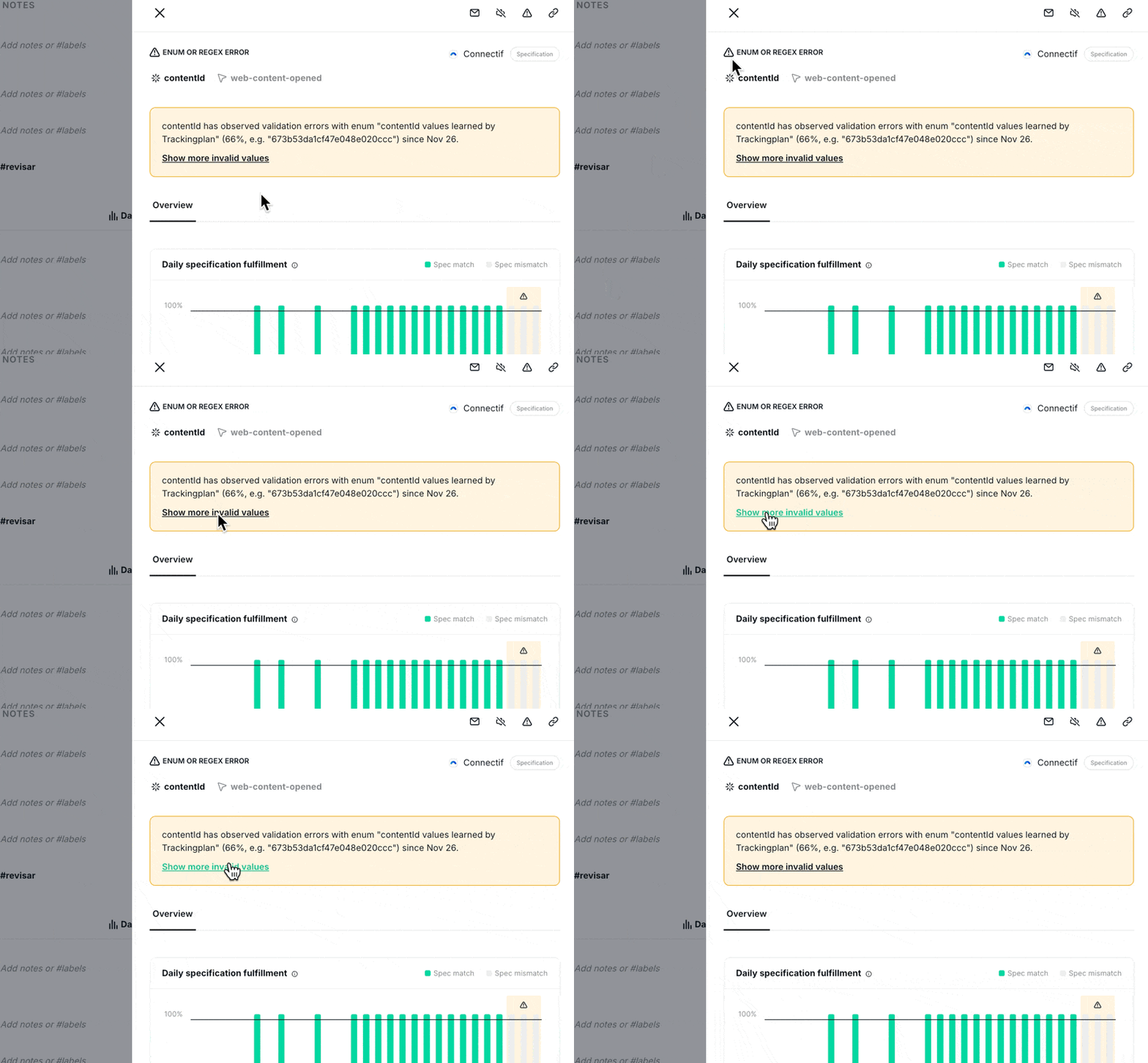
Conflict Detection in RegEx and Enums
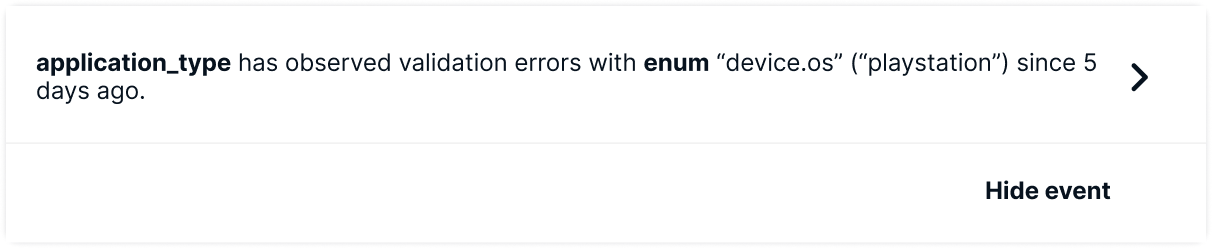
Pro tip: on an Enum or RegEx error, click “Show more invalid values” to see the values causing trouble and resolve the conflict faster.
Function Validations
A validation function lets you set up any complex check at track level. You get a warning whenever a property doesn’t pass the function that validates its event (e.g: cross-conditions, like checking that every product in a cart carries a valid product_sku given the page section).
To set up a custom validation function, write to support@trackingplan.com and we’ll help you.
Campaign Validations
Trackingplan keeps the names of your campaigns, mediums, and sources consistent. It highlights duplicates and badly formatted names before they hurt your data quality and your campaign attribution.
You write customized naming convention rules for your UTMs, and Trackingplan checks that every campaign follows your naming standards.
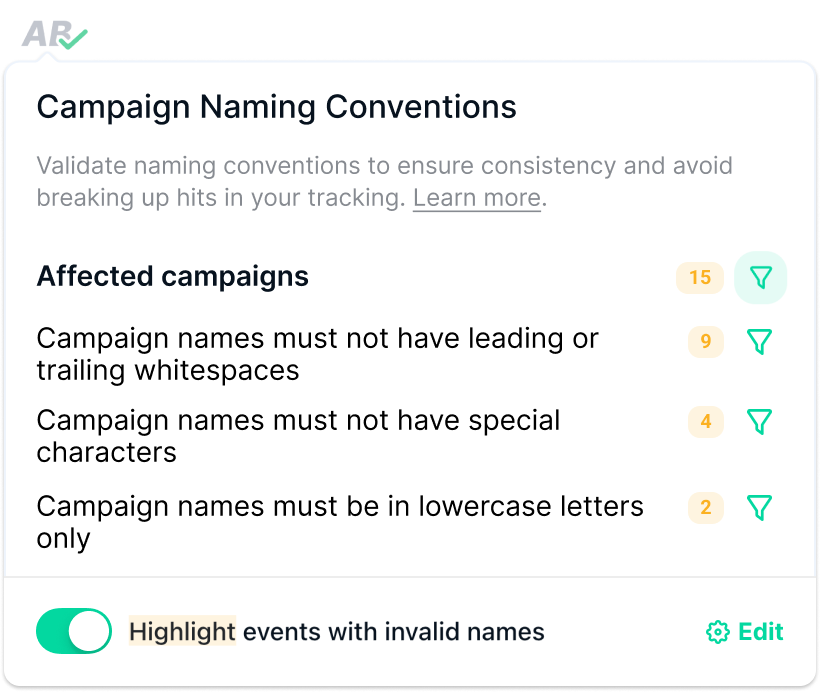
Any campaign name, medium or source that breaks a rule is highlighted, so you see at once what needs correcting.
Think of it as a “spellchecker” for your campaign data: it marks every element that doesn’t meet your standards.
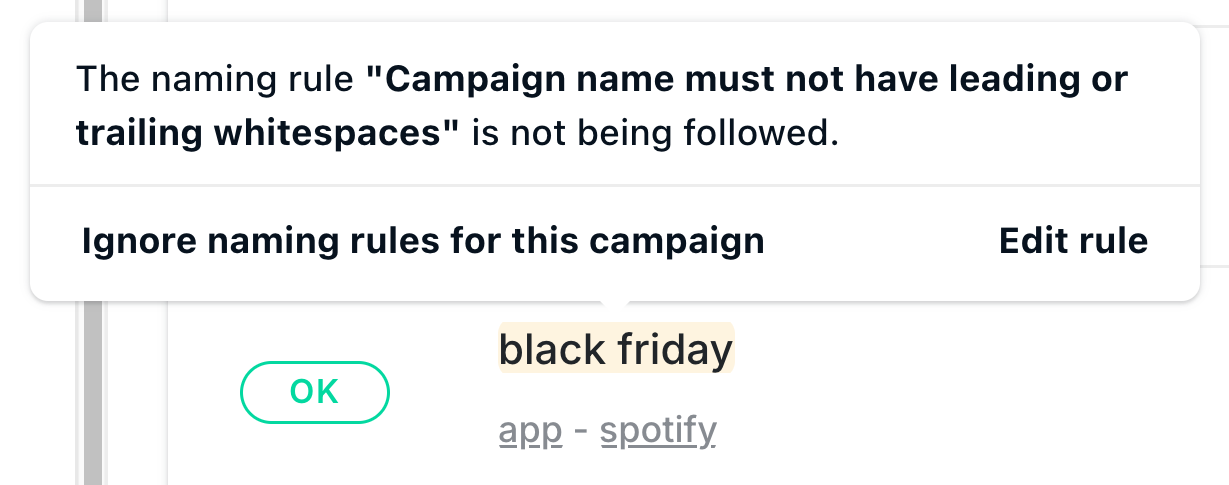
To create your own rules or use the pre-configured ones, see Naming Conventions Monitoring.
Creating Rules for UTM Naming Conventions
Consistent UTM names prevent attribution errors, and attribution errors skew your marketing performance metrics. Get the names right and your attribution holds up.
Learn more about best tracking practices to effectively monitor your UTM naming conventions here.
Here’s a real-world example:
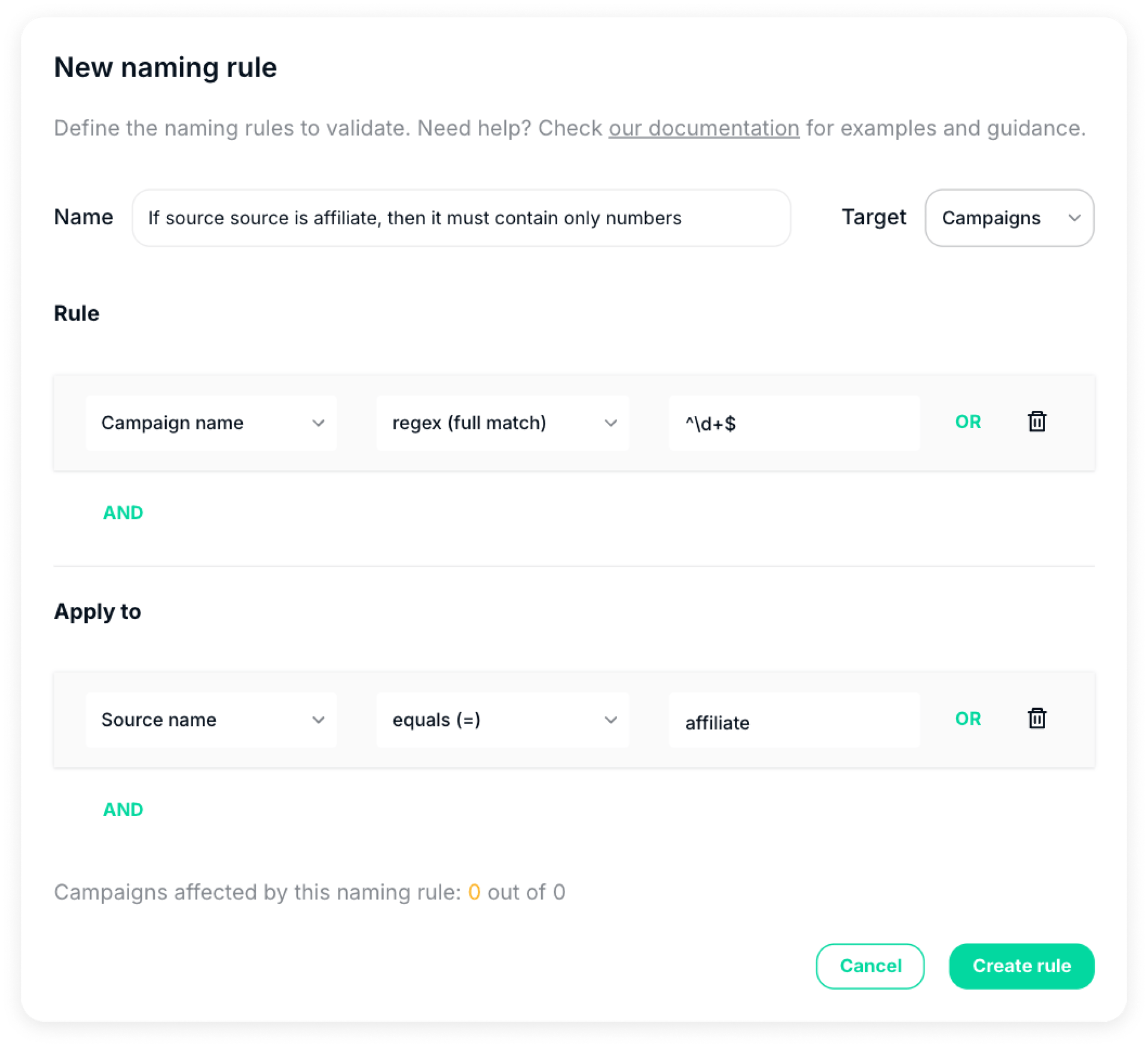
Enforce Numeric Values for the UTM Source affiliate
A rule that alerts you when the
sourceisaffiliatebut the campaign name contains letters or any other non-numeric characters.
Consistent, valid UTM parameters mean fewer attribution errors, so your return on ad spend (ROAS) and cost per acquisition (CPA) reflect what really happened. To build clean UTM parameters from the start, use our UTM Builder Tool.