Trackingplan’s AI Debugger allows you to transform raw debug warning data into clear, human-readable explanations, helping analysts quickly understand warnings, interpret their cause, and take action, without spending hours manually investigating.
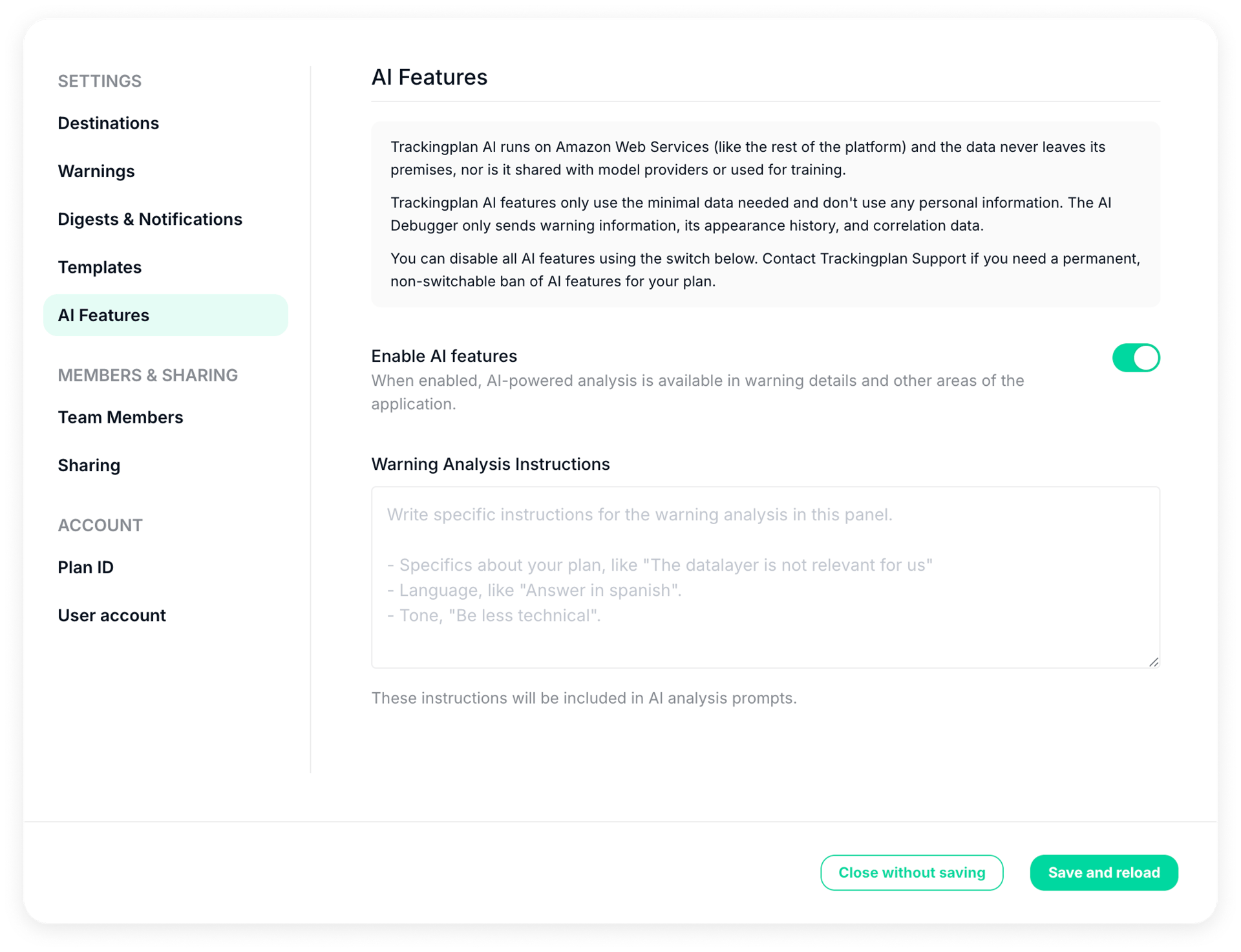
By default, all AI features are disabled and opt-in. You can activate them at any time from the AI Features settings.
How it works
You can access Trackingplan’s AI Debugger from the Warning Management View. Next to the Overview tab, you’ll find a dedicated tab called Warning Analysis.
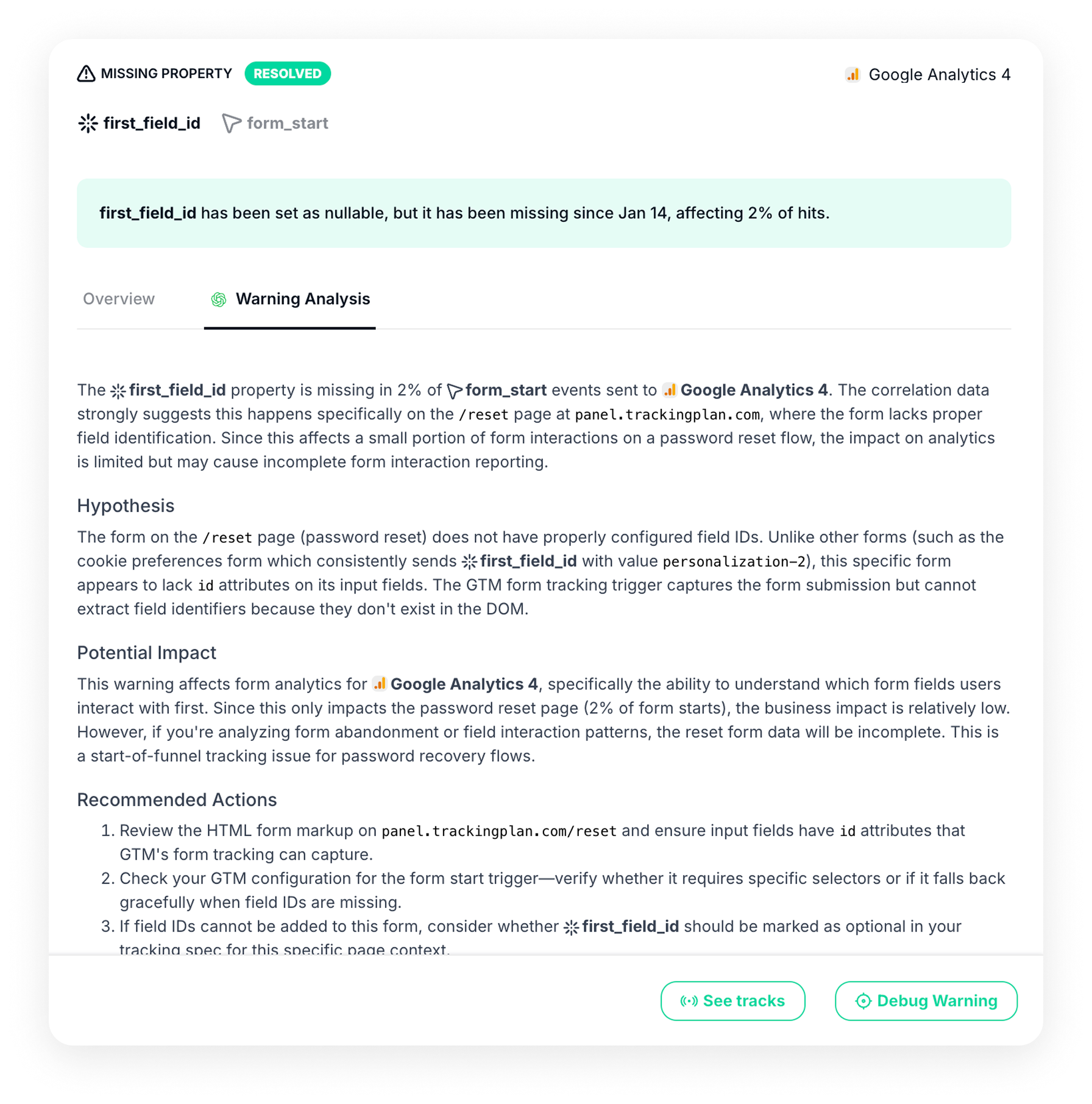
- Open a warning in your warning list and open the Warning Management View.
- Go to the Warning Analysis tab.
For each warning, an AI-agent will generate a human-readable explanation of the warning, based entirely on your debug warning data, but presented in a way that’s easier to consume for analysts who are short on time and need to act quickly.
These explanations include:
- Summary: A high-level overview of the issue, combining all relevant debug warning data into a single, easy-to-understand explanation.
- Hypothesis: A clear interpretation of the most likely root cause, written in plain language to make it easy to understand and communicate.
- Potential Impact: An estimation of the possible business impact of the warning. Instead of looking at the issue only from a technical perspective, it helps you understand what this problem could mean for performance—for example, how it might affect ROAS, conversions, campaign attribution, or data reliability.
By translating tracking issues into potential business consequences, this context makes it easier to prioritize what needs to be fixed first based on the real impact if left unresolved.
This is also especially useful when you need to communicate the value of your work to others. If you work in an agency or collaborate with stakeholders, this explanation can help you proactively show what you have prevented or mitigated. For example, you can clearly explain that a misconfigured tag or missing event could have led to incorrect campaign optimization or misleading reporting, indicating that it was identified and resolved before causing larger issues.
- Recommended actions: Actionable suggestions on what to review or fix, based on the detected warning patterns.
- When it happens: A concise summary of when and under which conditions the issue occurs, derived directly from Trackingplan’s Warning Debug.
From insight to action
Finally, all AI-generated insights can be copied to the clipboard. This allows you to copy the full explanation as-is to create a ready-to-use ticket and share it directly with the developer or person responsible for fixing the issue, without having to rewrite or translate technical details.
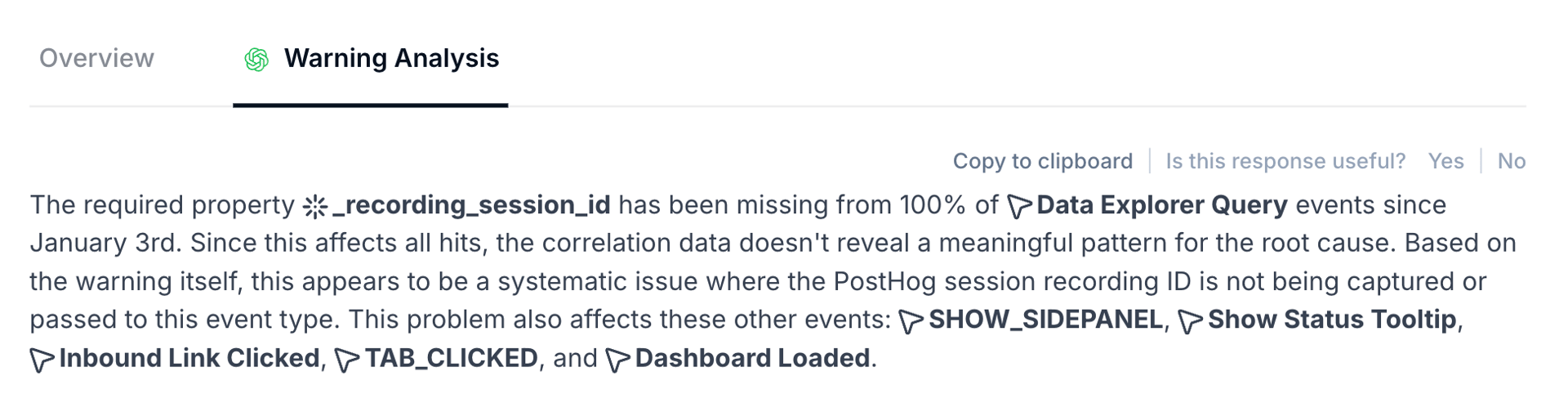
This approach provides an immediate starting point to investigate the issue and a clear hypothesis to follow, saving hours of trial-and-error, especially when you don’t know where to start.
Additionally, you can provide direct feedback on each explanation by indicating whether the response was useful or not. This feedback helps improve the accuracy and relevance of AI-generated explanations over time.
Customizing AI behavior
Within the AI Features settings, you can also configure instructions for the AI agent used in your Warning Analysis.
These instructions let you adjust how AI-generated explanations are written to better fit your team’s context and way of working.
For example, you can:
- Add specific context about your plan (e.g. the data layer is not relevant for us).
- Define the language of the responses (e.g. answer in Spanish, use French for all explanations…).
- Ask for a specific tone or level of detail (e.g. be less technical or explain it as if you were talking to a digital analyst who is short on time, give actionable recommendations only, skip background details, summarize explanations in bullet points for quick reading).
These instructions will be automatically included in the AI Warning Analysis prompts, allowing the AI agent to adapt its explanations as closely as possible to your needs.
If you need a permanent, non-switchable ban of AI features for your plan, contact Trackingplan Support. For more information about how Trackingplan handles AI usage, data, security, and compliance across the platform, refer to our Privacy & Security documentation.