The Events tab of each destination lists its events with their daily hits and notes. Click an event to open it, with the tabs Properties, Traffic, Warnings and Changes, and the buttons Data Explorer, Tracks Explorer, Actions and Analyze. The menu of each event gives Data Explorer, Tracks Explorer, History, View Notes, Warning Settings, Event Rules (Beta), Hide Event and Share.
An event is what a user does on your website or mobile app: clicking a button or an outbound link, creating an account, watching a video, downloading a file or submitting a form.
Trackingplan checks that your trackers and pixels track your events correctly. Your team can also work on events together by adding or editing their descriptions.

To make your data easier to navigate, Trackingplan works with several types of events. Here they are:
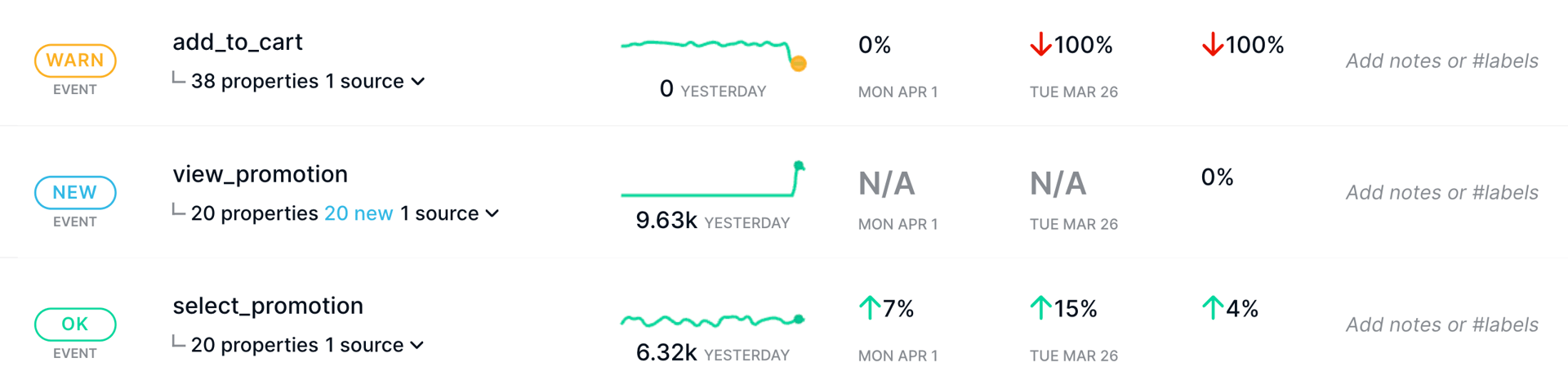
Standard Events: Automatically uncover your actual digital analytics schema
These are the events Trackingplan discovers on its own from the traffic your apps and websites send to third-party integrations like Google Analytics, Segment or Mixpanel.
Merged Events: Navigate your data more smoothly
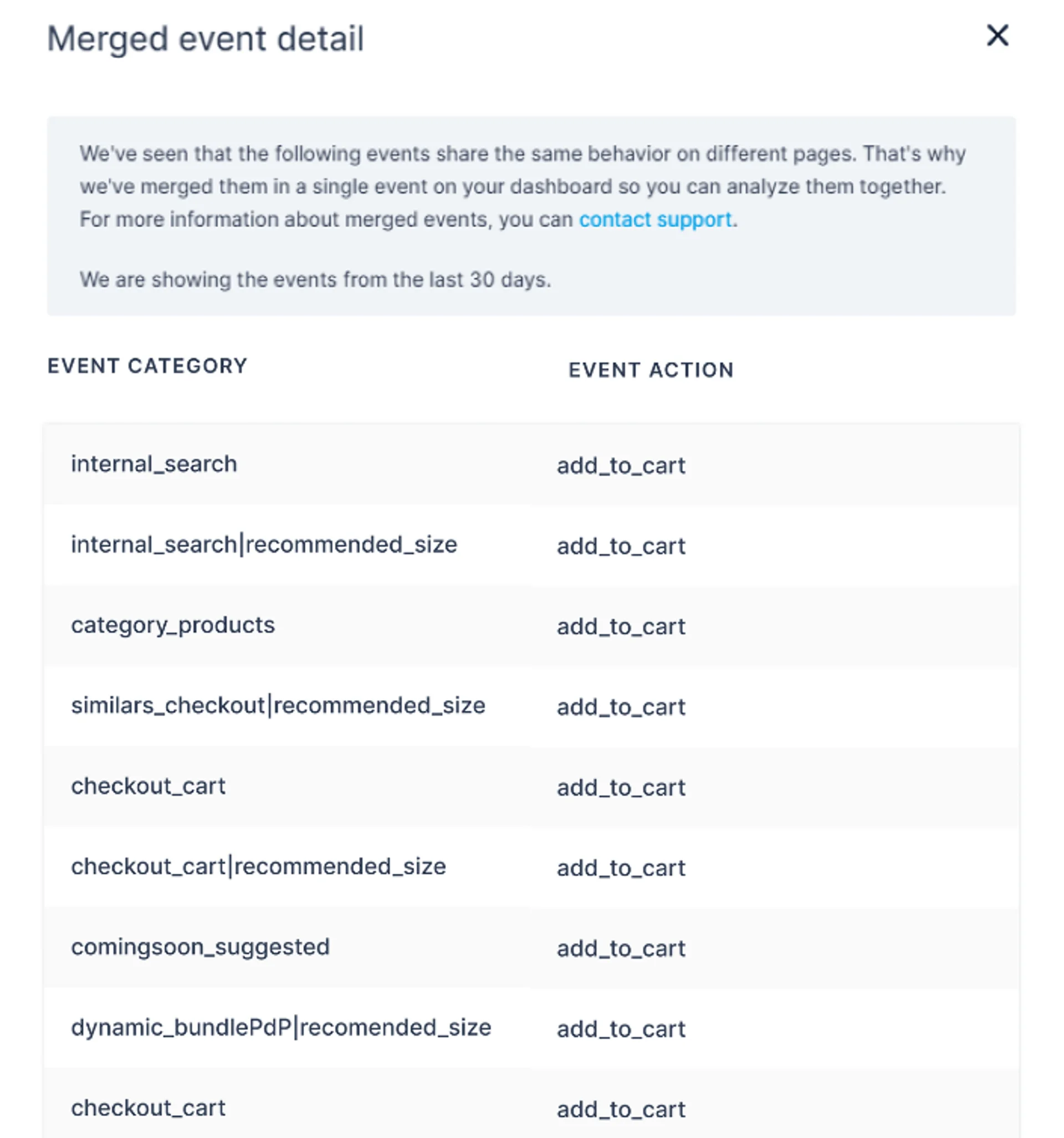
Some events behave the same and share a specification across pages, yet show up as hundreds of unique events. That makes them hard to analyze together or take in at a glance. You can merge them.
Trackingplan merges events that behave the same across different pages or use cases into a single event.
Your data is easier to navigate, and you can analyze those events together every time you open your panel. Want them merged differently? Contact support and we’ll do it for you.
Merged events appear in green on your dashboard. Hover over one to see this tooltip.
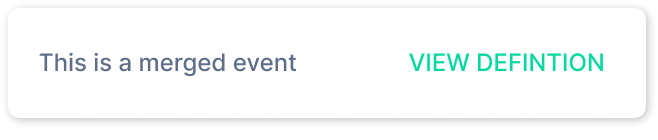
Click “view definition” to see the list of events that were merged.
Custom Events & Metrics: Data validation with maximum precision
Going the other way, when you want to track and validate an event in more detail, you can create custom events and metrics based on existing events, their properties, and your tags.
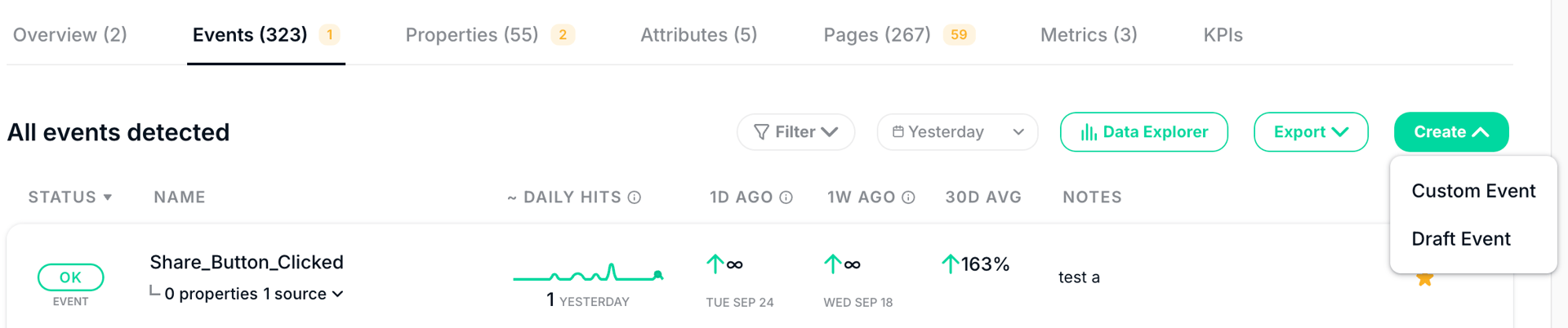
You create custom events or metrics from this modal.
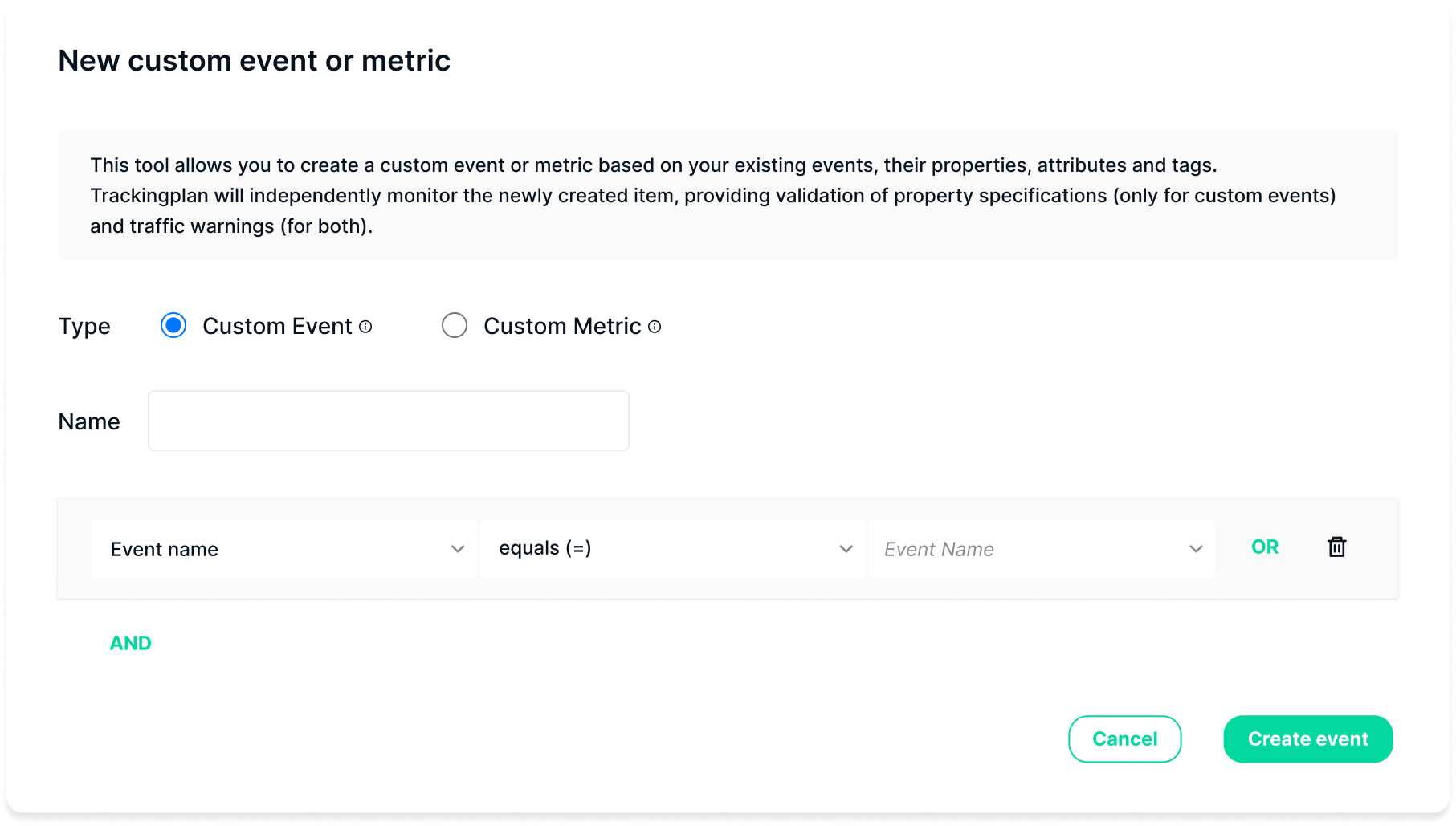
Want to make sure you’re not sending tracks to events whose consent for storing information was denied or is unknown? Create custom events or metrics for them, and you’ll know as soon as they start receiving tracks. Learn more about Google’s Consent Mode & Trackingplan here.
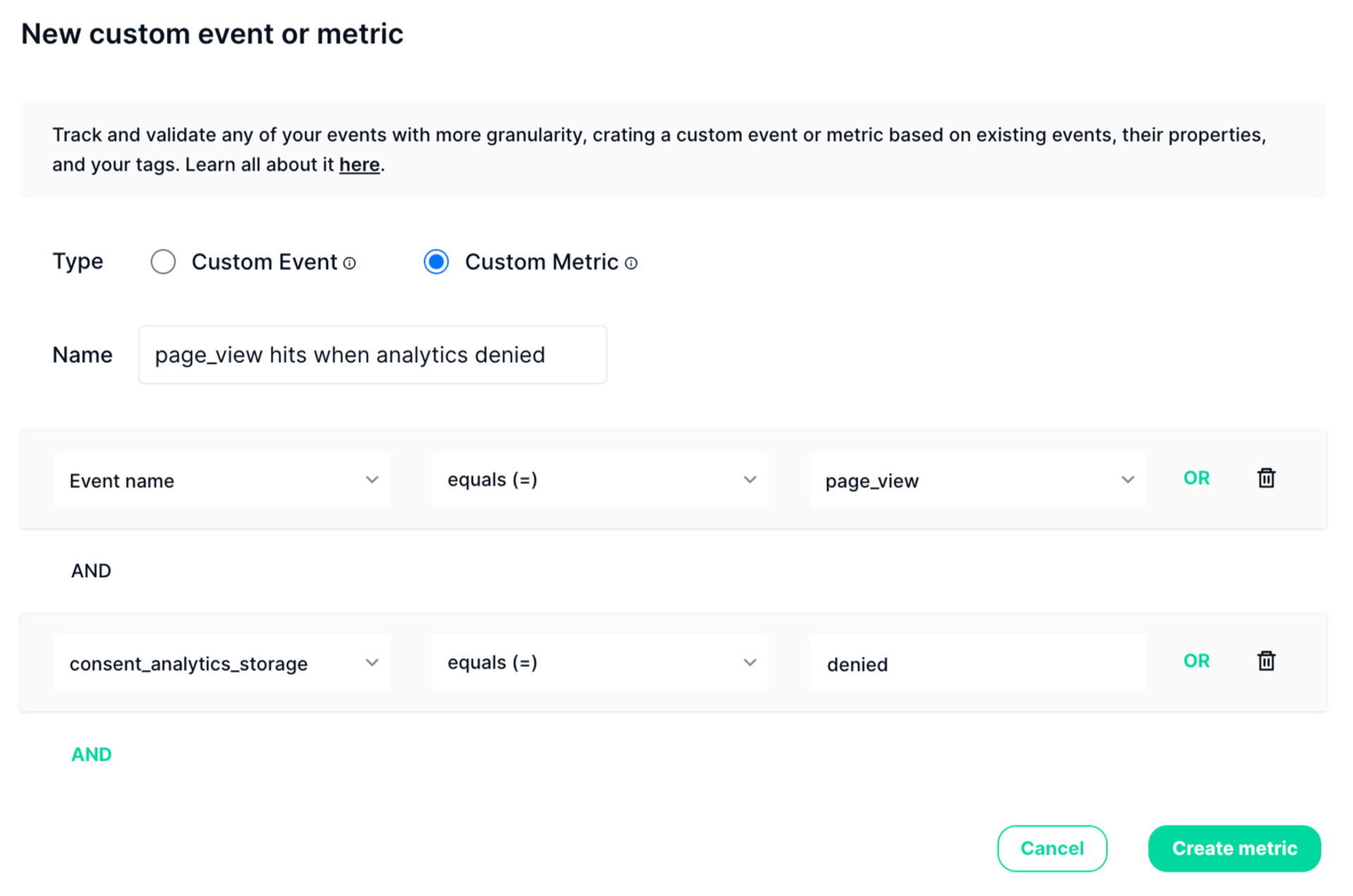
Here is how a custom event and a metric differ:
Custom Events
Custom events are monitored like any other event you implemented. Each one gets its own traffic analysis, specification validation for its properties, and traffic warnings.
For example, create a custom event called premium_user_search to follow the search event closely when a user in the premium segment triggers it. As soon as Trackingplan detects hits that match premium_user_search, it sends that traffic to the new event, and you can follow it from your Trackingplan’s events tab.
Like merged events, custom events appear in green, so they are easy to spot.


Click “View Definition” to see the event's full specification.
Just like standard events, you can star custom events, tune their warnings to your specs, create validation rules or follow them in Trackingplan’s Digests.
To learn more about Custom Events, check out this video to see them in action.
Metrics
Some scenarios matter to measure even when you only care about their traffic and any anomalies, not their properties:
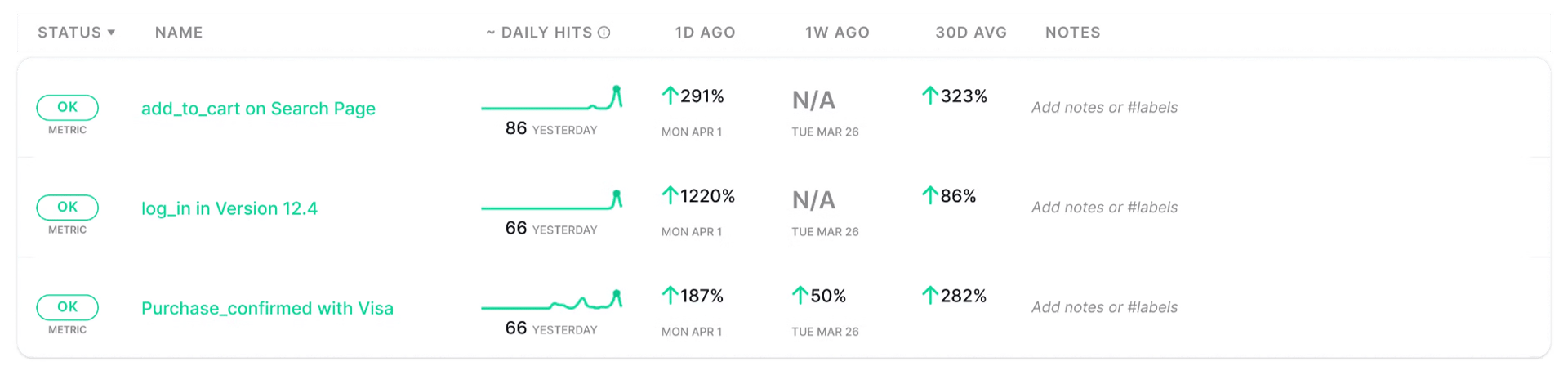
- An event Add_to_Cart on the Search Page…
- The Log_in in Version 12.4…
- The Purchase_Confirmed with Visa…
Metrics don't include properties, so you can monitor these events without the noise of possible property errors.
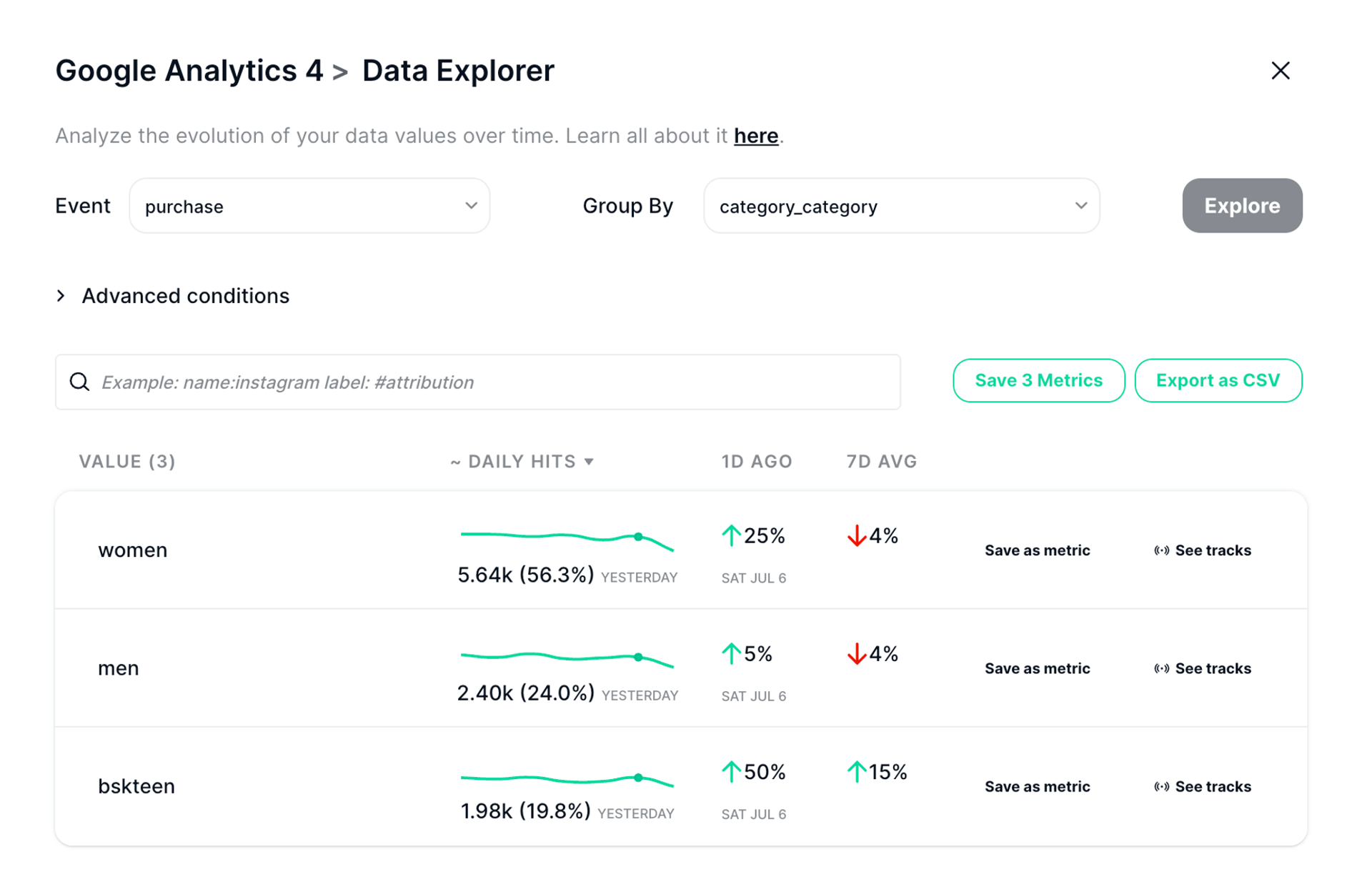
You can create metrics right in Trackingplan’s Data Explorer. To create several at once, click "Save X Metrics". To create one metric per unique value of a property, click "Save as Metric".
Your metrics then appear in your Metrics Tab. As with custom events, you can view their definition, star them, add notes or follow them in Trackingplan’s Digests.

Draft Events: Set your expectations in advance
Create new events and define their specification before they exist, with the Draft Event button at the top right of your Dashboard.

Add the properties each new event will include, and set the type and required constraints you expect.
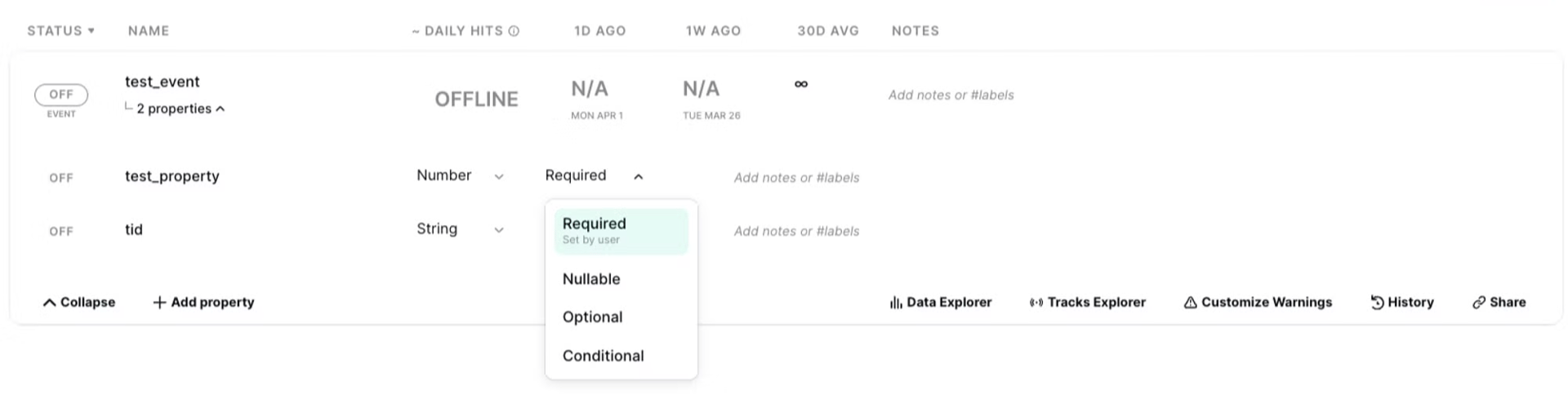
When the event shows up for the first time, Trackingplan fills in the draft and validates it against your specification, with warnings if anything is off. Until the first hit arrives, the event appears as OFF.
You also get an alert when the event goes live in each environment, like staging or production. Whoever defined the specification can check the dev team's implementation, or the other way round. If something is wrong, you flag it and get it fixed right away, not when the data is already missing.
Offline Events
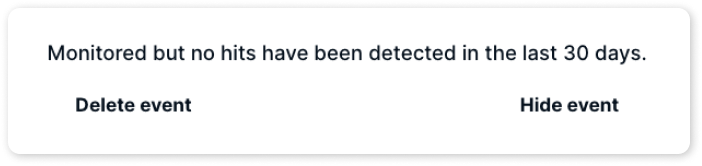
Trackingplan also tells you about Offline events: events that have received no traffic for at least a few days. You always know which events have stopped receiving data.
If you won't use them anymore, delete or hide them. Your tracking stays clutter-free, and the data you work with stays relevant.
Filtering Event Types
To see only one type of event in your dashboard, filter by it in the search bar.
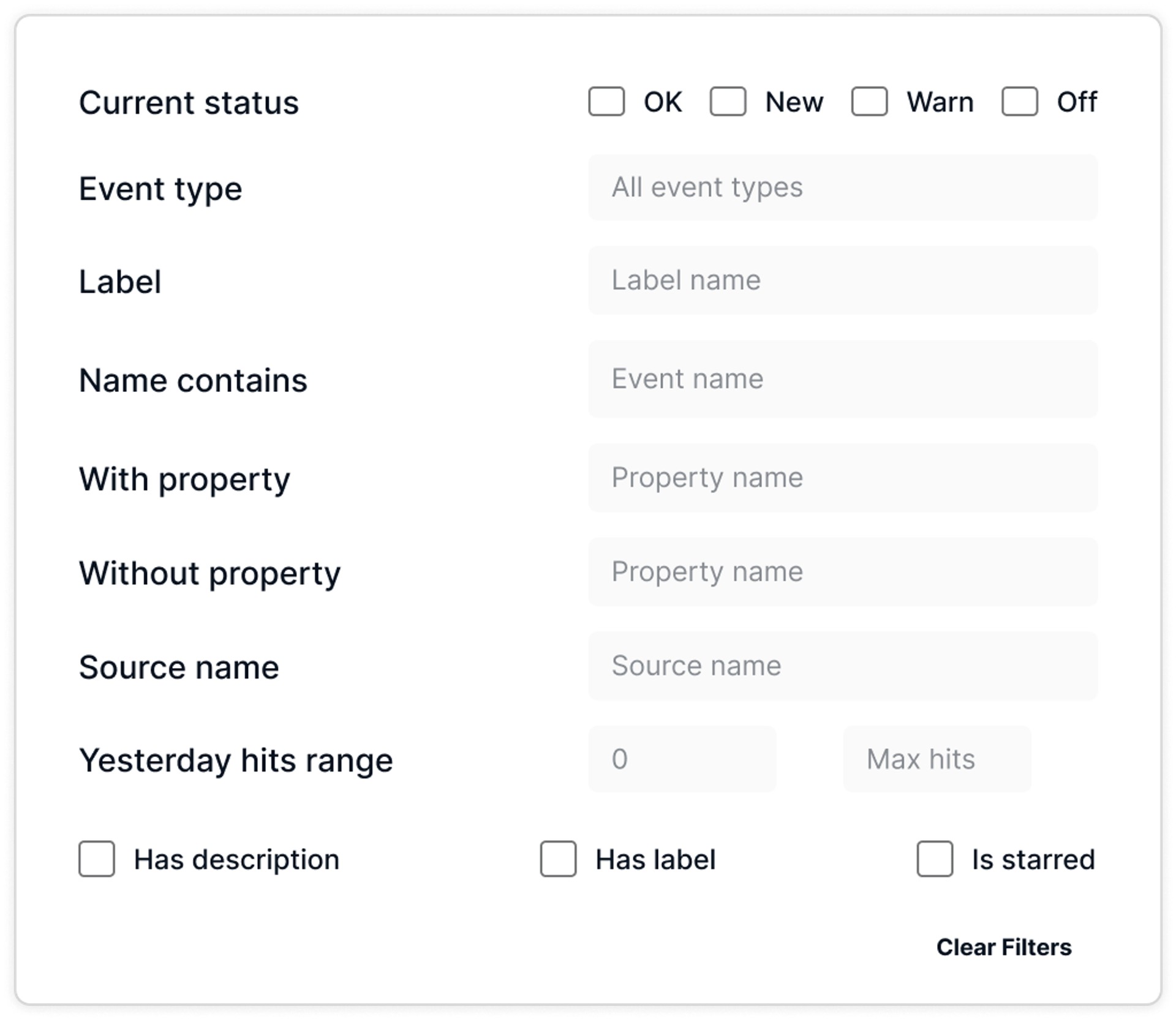
To go further, read this blog post on how to optimize data validation within your actual analytics schema with event types.