Trackingplan keeps the names of your events, campaigns, mediums, sources and properties consistent. It highlights duplicates and badly formatted names before they hurt your data quality, your attribution or your analytics implementation.
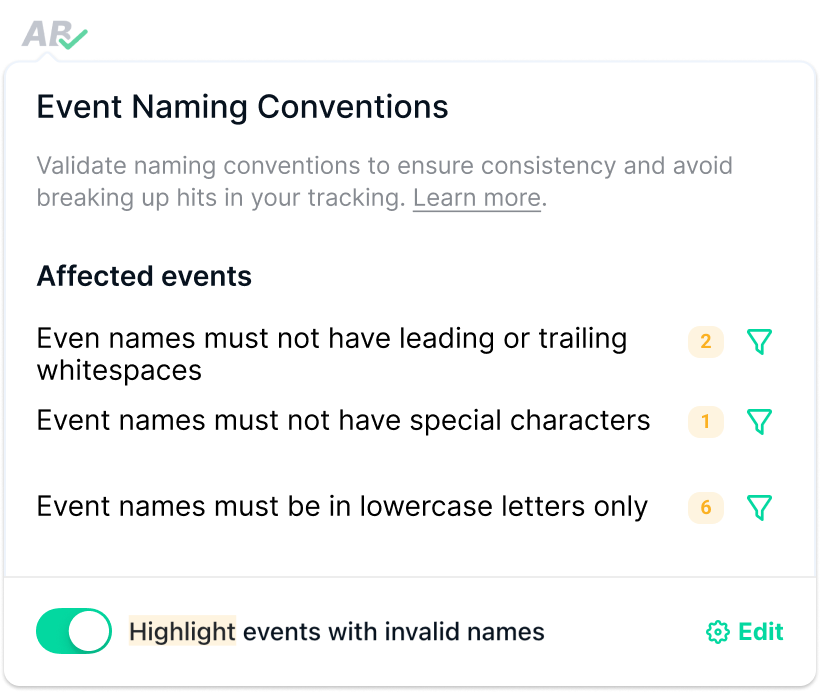
You write customized naming convention rules for your UTMs and your analytics implementation, and Trackingplan checks that your campaigns and analytics data follow your naming standards.
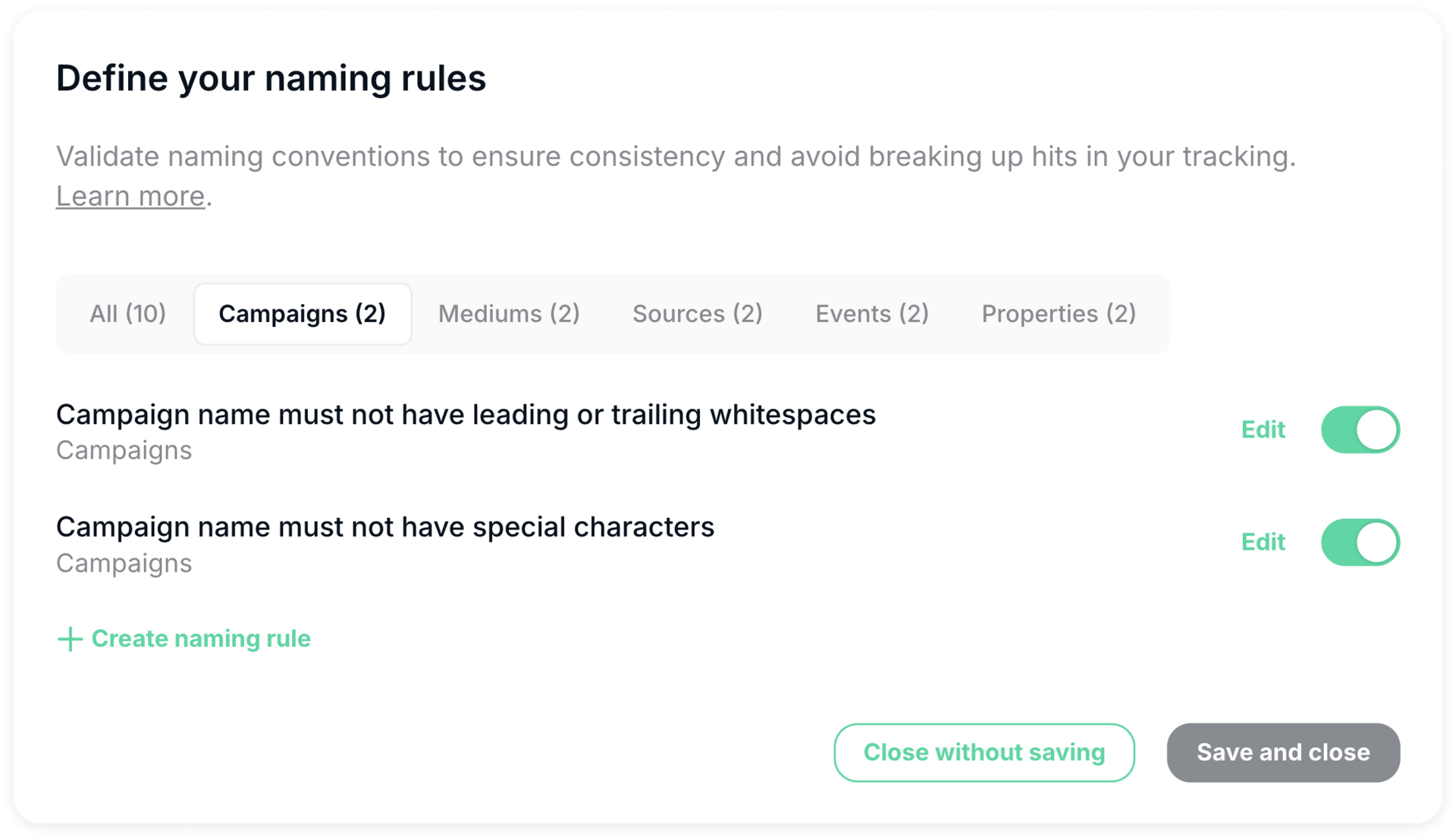
To get you started, Trackingplan includes a set of preconfigured rules you can turn on or off. They cover common patterns like kebab-case, camelCase, snake_case and more, so you can check your events, campaigns and other tracking elements against your standards without writing a rule from scratch.
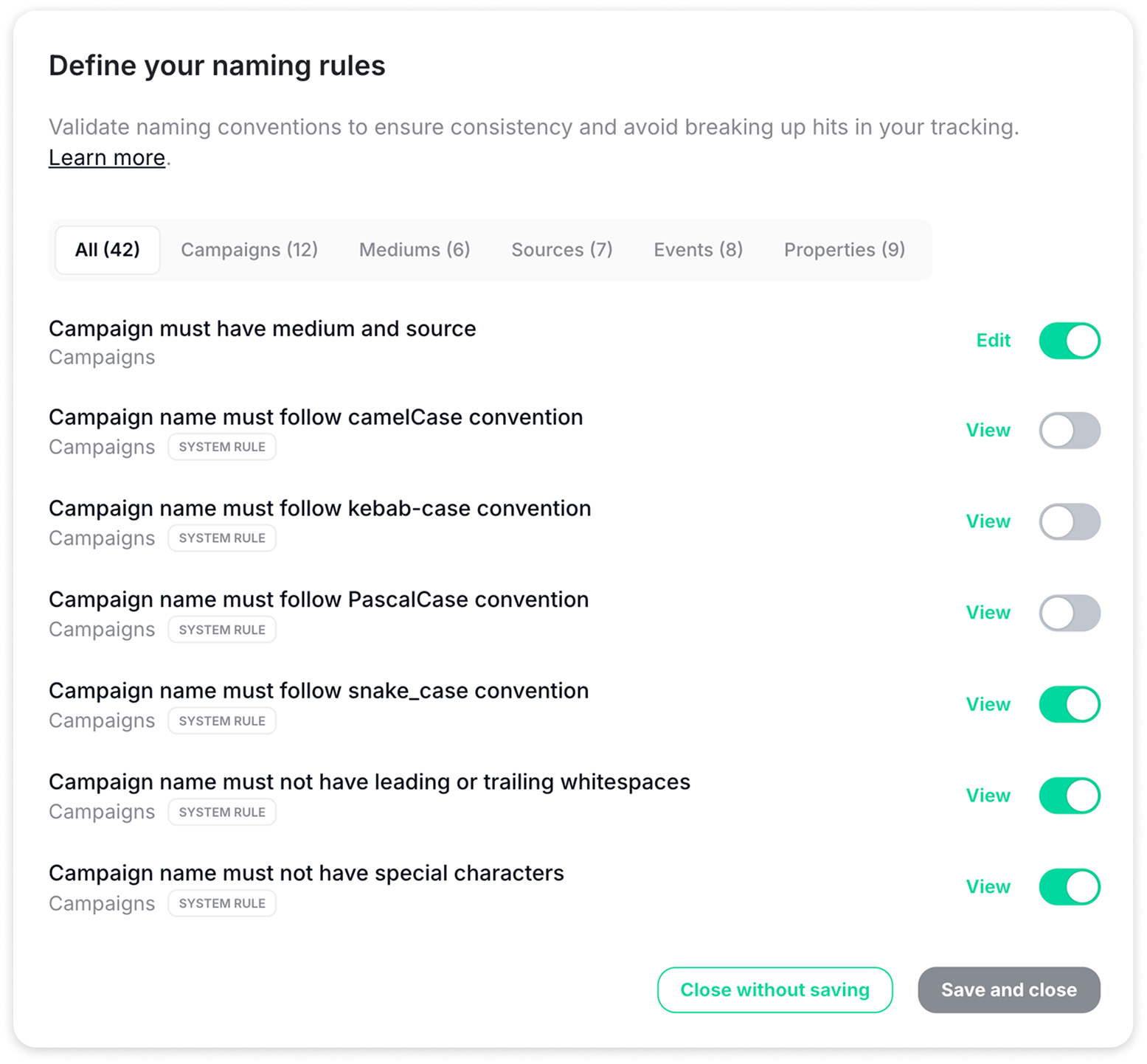
They cover the most common cases and follow the best practices of major providers, such as Google Analytics 4 (GA4). Missing a common convention or pattern? Tell our support team.
Create New Rules
You can also create your own custom rules from scratch, for your campaigns, mediums, sources, events and properties. Each part of your tracking gets the rules that fit it, and you stay in control of your naming conventions.
Click “Create naming rule” to start.
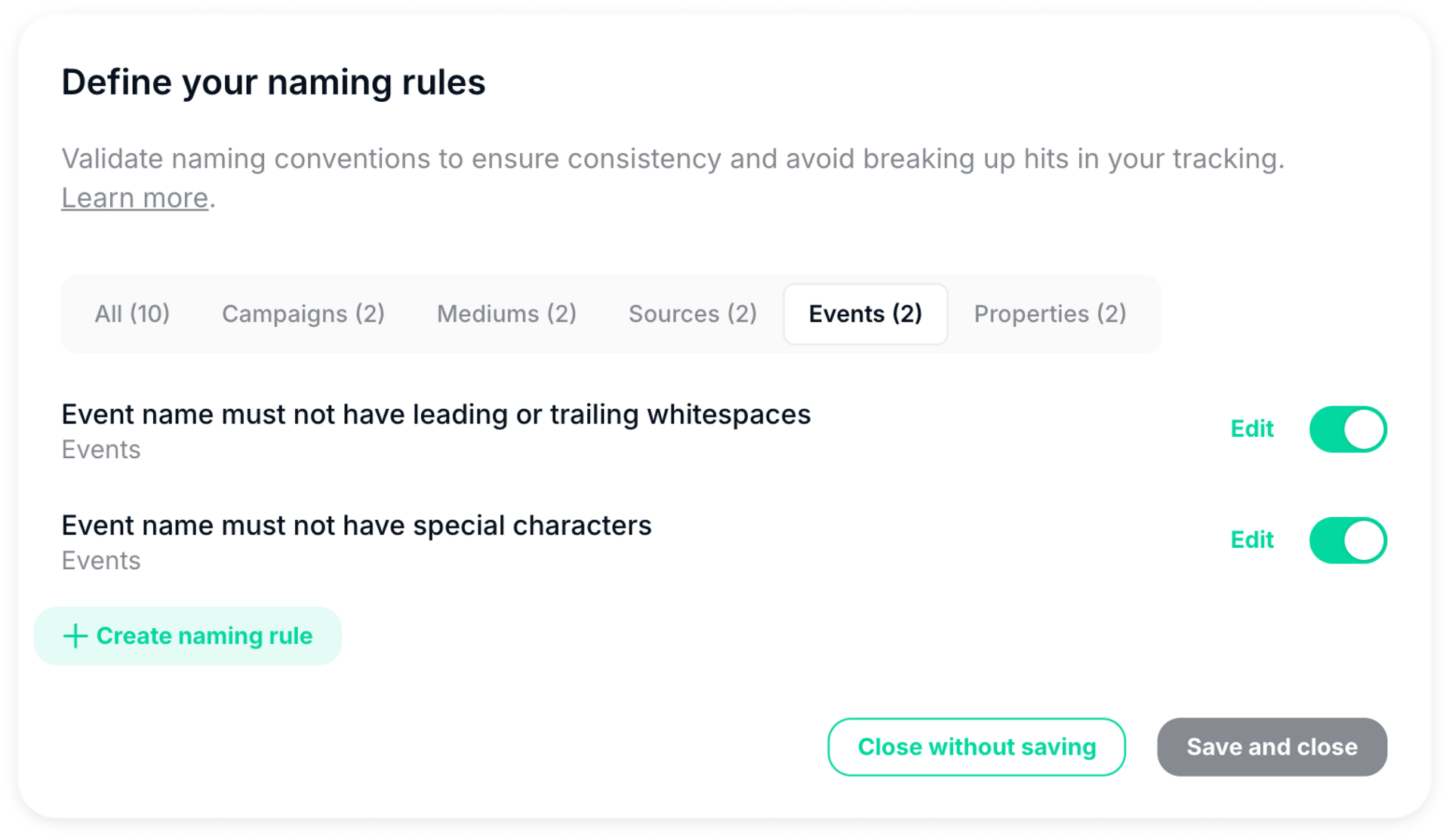
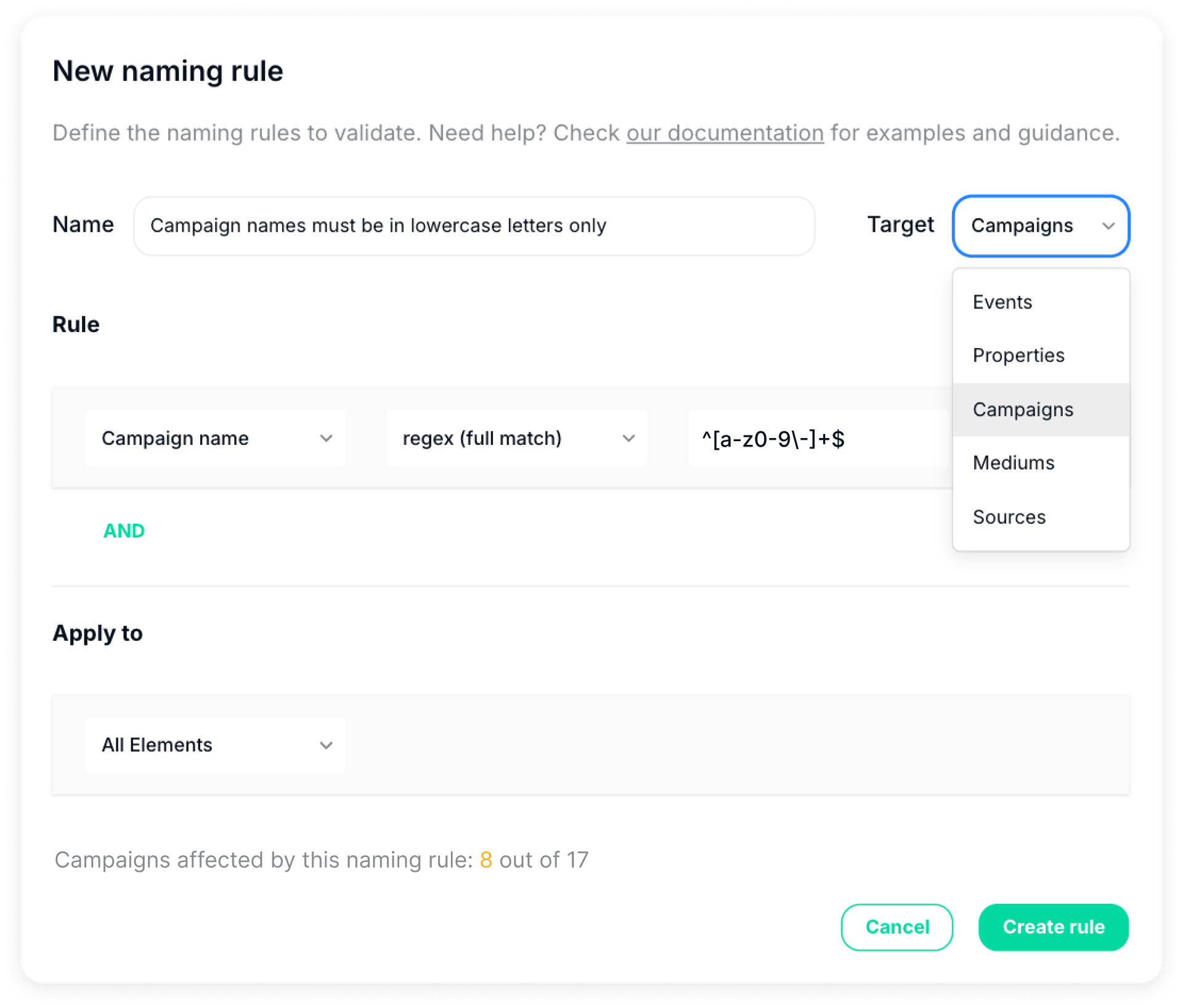
Give your rule a title and select the dimension it applies to (campaigns, events, mediums, etc.).
You write the rule as a Regular Expression (Regex): a pattern every value must follow, for strict and consistent validation.
As you write a rule, you see in real time which elements it affects. In the example below, 8 of the 17 campaigns that meet these parameters don’t comply with the rule.
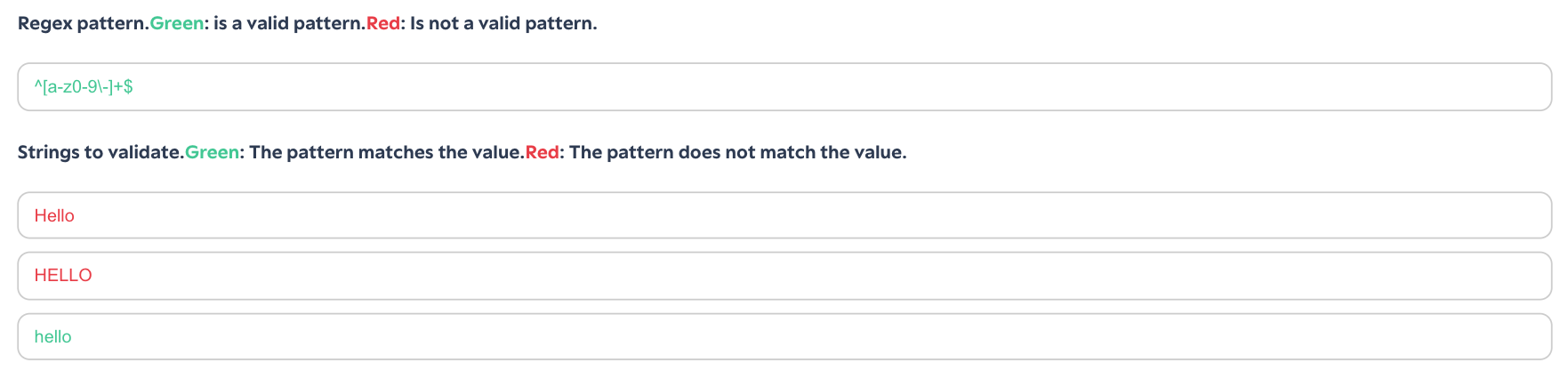
Want to test an expression first? Try our Regex Tester Tool. New to Regex? Our support team will gladly help you write and refine your custom rules.
Identifying Issues
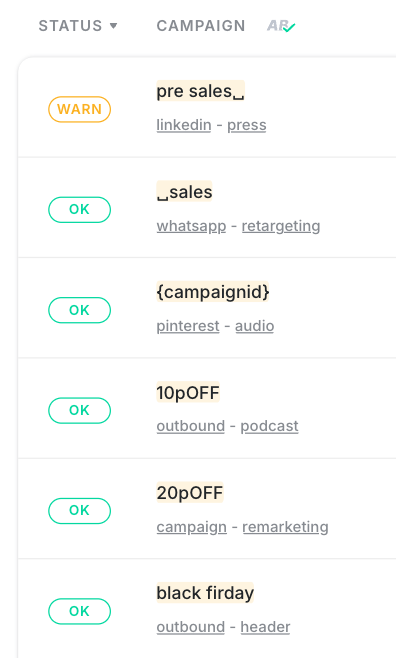
Once your rules are set, Trackingplan flags every violation across your panel. Any event name, campaign, medium or other element that breaks a rule is highlighted, so you see at once what needs correcting.
Think of it as a “spellchecker” for your data: it marks every element that doesn’t meet your standards.
Finding errors in a panel with 2,000+ campaigns can be a lot. So you can filter only by affected elements and see the total number of errors against any of your active rules. To narrow it down, apply filters on specific rules and see only the warnings of one rule, to work through them one at a time.
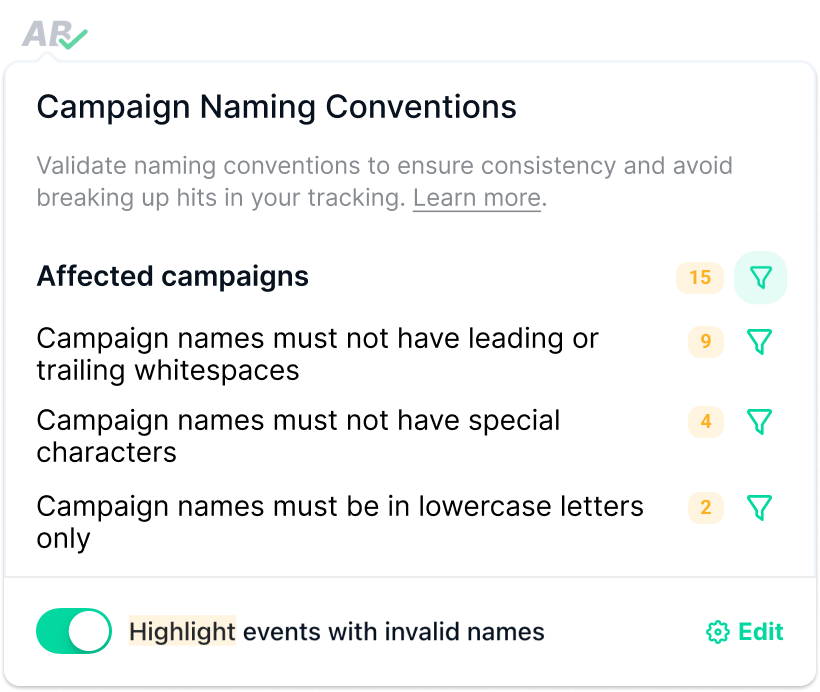
Hover over a highlighted name to see which rule it breaks and why, so you know what to correct.
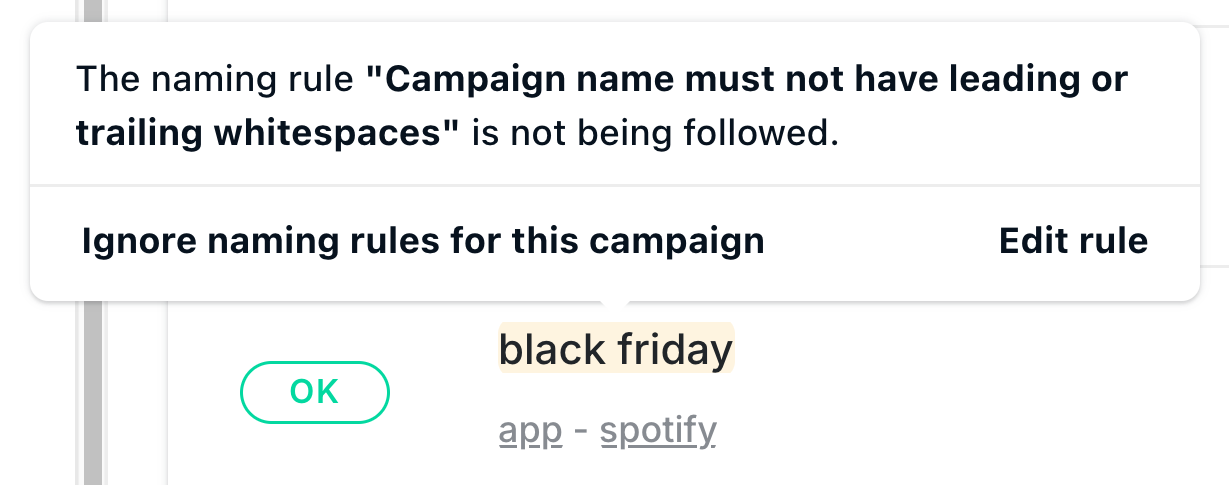
From there, you can ignore the convention for that element if it’s an exception, or edit the rule to adjust it.
Use Cases
Some real-world examples:
Create Rules for Event and Property Naming Conventions
Ensure event names are always in lowercase
A rule that alerts you whenever an event name contains uppercase letters or other non-compliant characters keeps your tracking consistent.
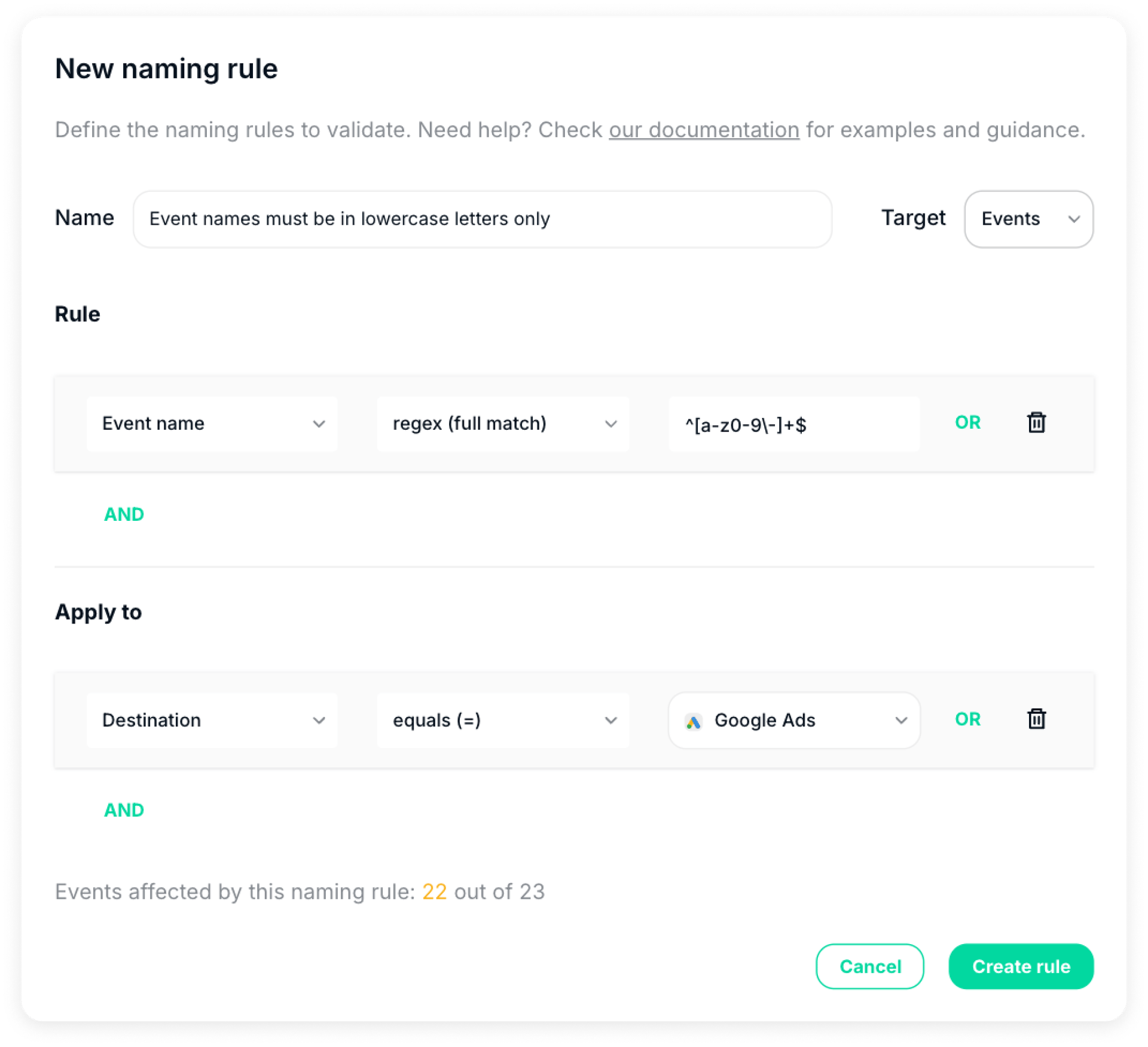
When you create or edit an event naming rule, you can limit it to specific destinations. For example, a rule can apply only to Google Ads (destination = Google Ads).
Want to test your Regex? Fine-tune it in our Regex Tester Tool.
Your Events tab shows the errors in your event naming conventions. If you also have rules for properties, expand any event to see them.
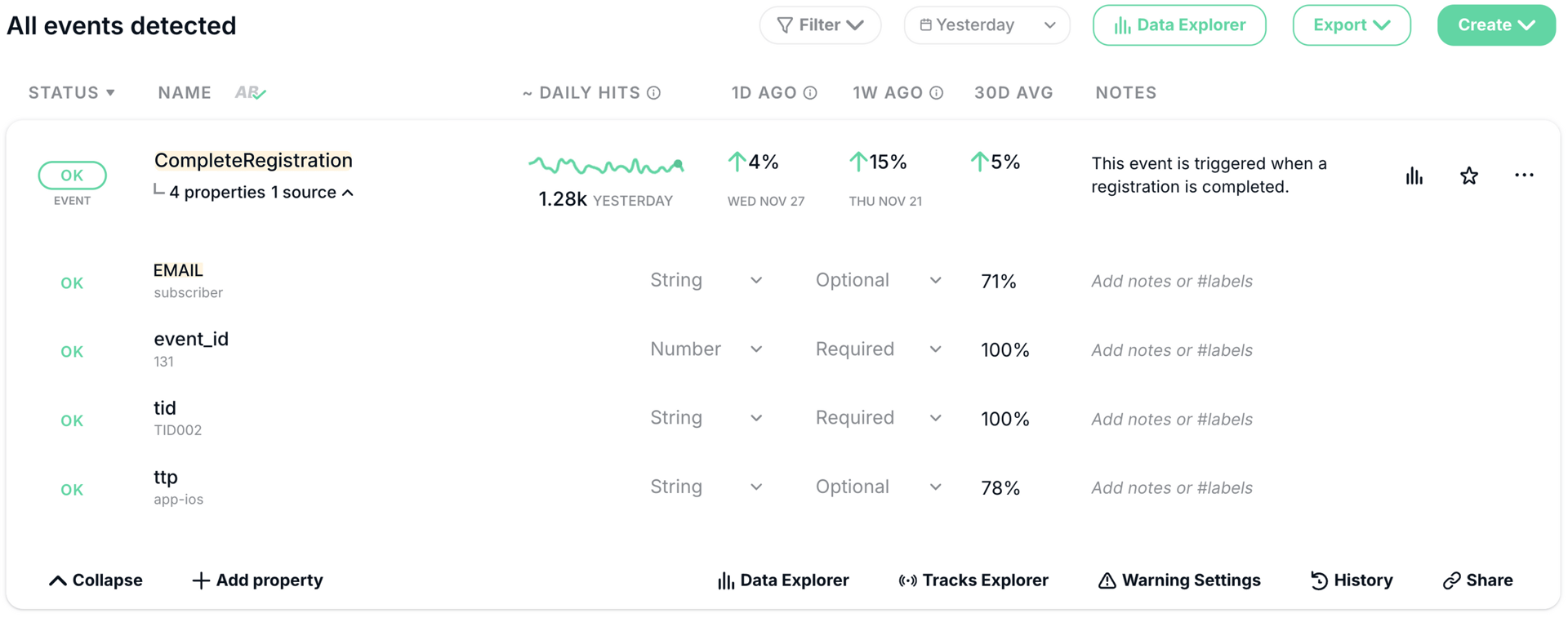
To see only property naming errors, go to your Properties tab, where they are grouped for quick review.
Create Rules for UTM Naming Conventions
Consistent UTM names prevent attribution errors, and attribution errors skew your marketing performance metrics. Get the names right and your attribution holds up.
Enforce Numeric Values for the UTM Source affiliate
A rule that alerts you when the
sourceisaffiliatebut the campaign name contains letters or any other non-numeric characters.
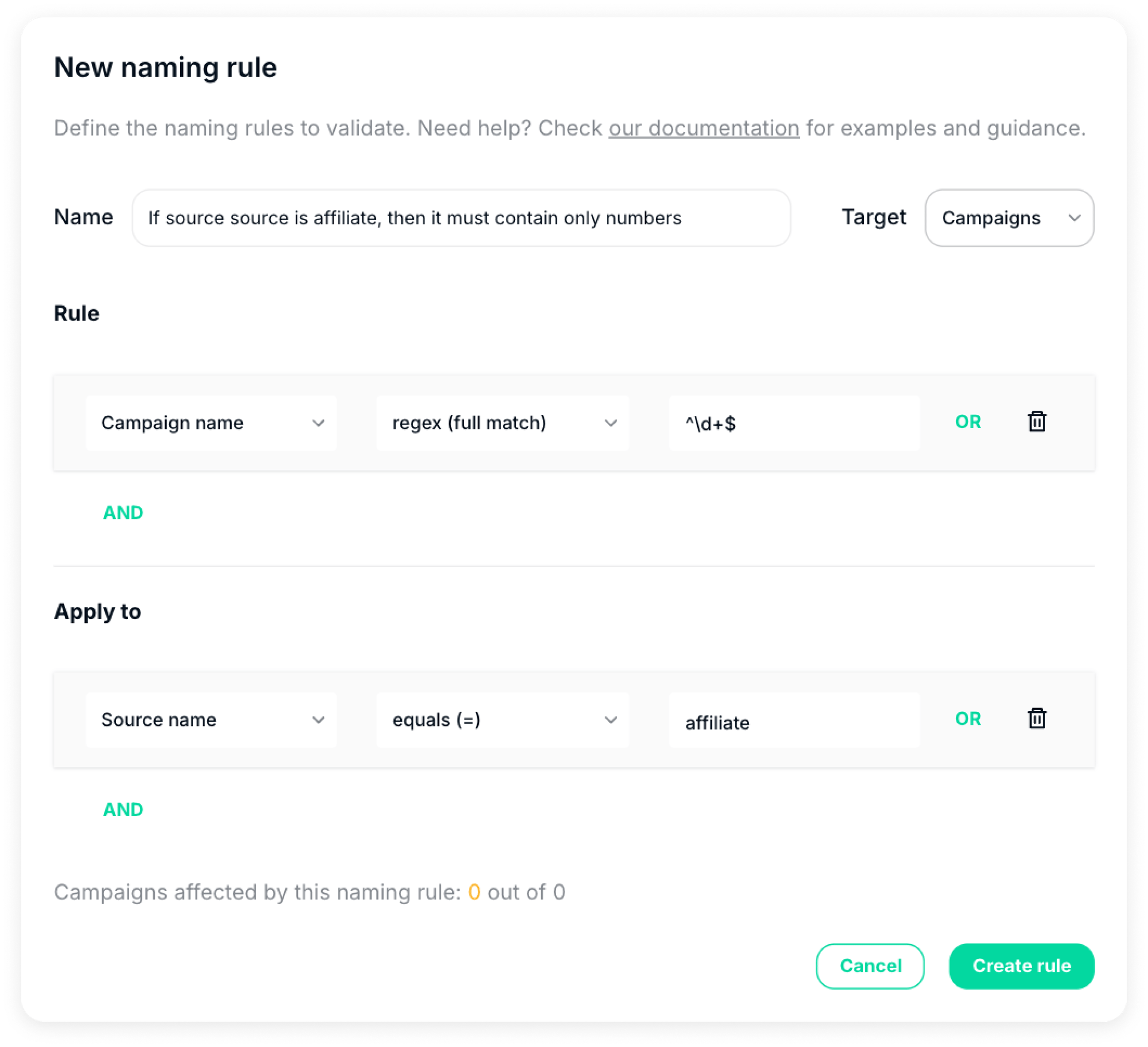
Consistent, valid UTM parameters mean fewer attribution errors, so your return on ad spend (ROAS) and cost per acquisition (CPA) reflect what really happened. To build clean UTM parameters from the start, use our UTM Builder Tool.