An audit is a check that Trackingplan writes, saves and runs for you. Each run ends with a verdict and tells you what to change. Open Audits from the menu.
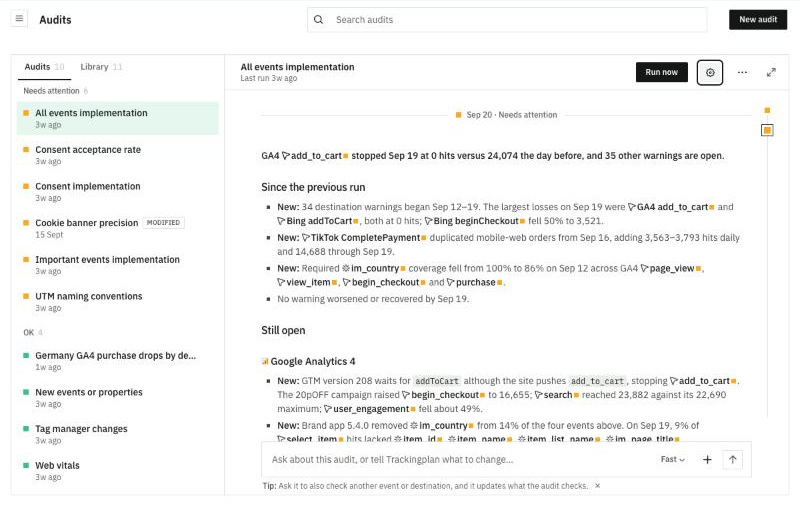
The Audits tab
Audits lists the audits set up on your plan, grouped by their latest verdict: Needs attention first, then OK. MODIFIED marks an audit that no longer matches its version in the Library.
Hover an audit and click … to Run now, Rename or Delete it. Search audits, at the top of the screen, finds one by its name.
An audit and its runs
Click an audit to open its latest run. The header shows when it last ran, the Run now button, the settings icon and ….
Each run starts with its date and verdict, and a one-line summary. Then:
- Since the previous run: what is new.
- Still open: what remains, grouped by destination.
- What to change: the fixes, one per line.
- Context and Checked: what the audit took into account and what it read.
- Why this verdict: expand it to see how the verdict was reached.
The marks on the right edge stand for the runs.
Click Run now whenever you want a fresh run, for example right after a release.
To ask about the audit or change it, write in Ask about this audit, or tell Trackingplan what to change… at the bottom. For example, ask it to also check another event or destination, and it updates what the audit checks.
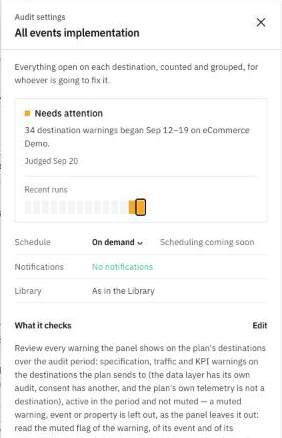
Audit settings
Click the settings icon in the header:
- The latest verdict, when it was judged, and the Recent runs.
- Schedule: On demand. Every day and Every week are coming soon.
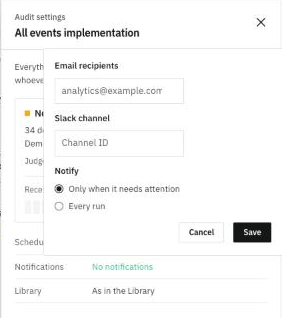
- Notifications: the Email recipients and the Slack channel that receive the result, and whether to Notify Only when it needs attention or on Every run.
- Library: whether the audit is still as in the Library.
- What it checks: the instructions the audit follows. Click Edit to change them.
- Preferences: what to ignore or keep an eye on. Tell Trackingplan in the conversation and it adds it here.
- How it is judged: when a run Needs attention, Passed or is Inconclusive. Click Edit to change it.
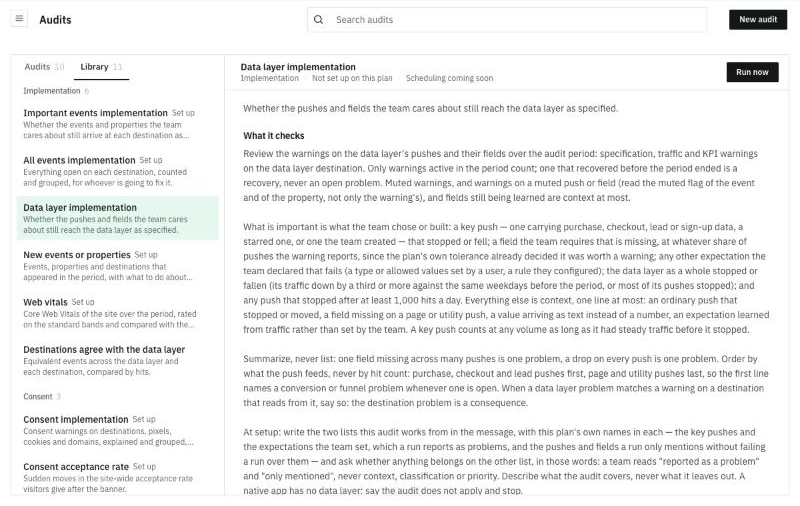
The Library tab
Library holds ready-made audits, grouped by topic, so you don't have to write them from scratch:
- Implementation: Important events implementation, All events implementation, Data layer implementation, New events or properties, Web vitals, and Destinations agree with the data layer.
- Consent: Consent implementation, Consent acceptance rate, and Cookie banner precision.
- Tag Manager: Tag manager changes.
- Campaigns: UTM naming conventions.
Set up marks the ones already on your plan. Click an audit to read what it checks. Not set up yet? Click Run now to set it up and run it.
Create your own audit
Click New audit. A new thread opens in Audit mode. Describe what the audit should check in Describe what this audit should check… and send it. Trackingplan asks for anything it needs, such as the threshold that should make the check need attention. Then it creates the audit.
You can also start from any thread: click + > Audit mode, or ask the agent to turn a check into a saved audit. The thread shows the new audit as a card with Open audit.
Limits
- Audits run when you click Run now. Scheduled runs (Every day, Every week) are coming soon.