A thread is a conversation with the Trackingplan agent. Ask about your tracking data (events, destinations, campaigns, warnings) and the agent answers from the raw traffic of your plan. Open Threads from the menu.
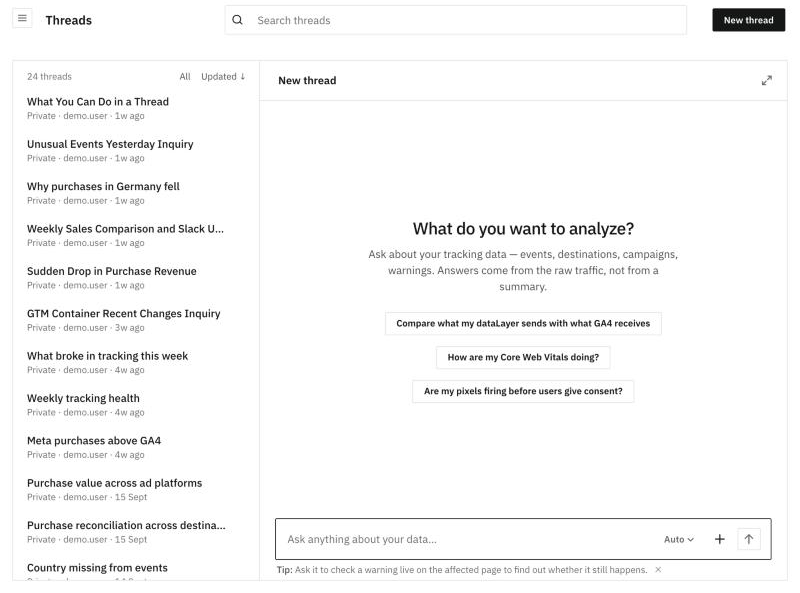
The thread list
The list on the left holds your threads and the ones shared with you. Each one shows its title, its visibility (Private, Everyone or Public), its owner and when it was last updated.
- Search threads, at the top of the screen, finds a thread by its title.
- All filters the list: All, Starred, Private, Shared with me or Shared by me.
- Updated sorts it by Updated, Name, Owner or Visibility.
Hover a thread and click … to Star, Share, Rename or Delete it.
Start a new thread
Click New thread, or press ⌘⇧K from any page. The empty thread asks "What do you want to analyze?" and suggests three questions to get you going. Click one, or write your own in Ask anything about your data… and send it.
Next to the box:
- Auto chooses the model. Auto picks one for each question; you can also choose Max intelligence, Balanced or Fast.
- + adds context to the question:
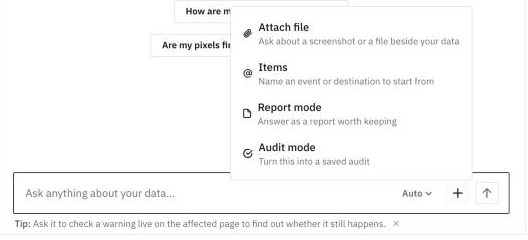
The line under the box shows a tip. A useful one: tell the agent facts like "the Meta pixel was retired", and it keeps them in mind for everyone on the plan.
An open thread
Click a thread and it opens beside the list. The header shows its title, visibility, owner and date, and three controls:
- Share sets who can see the thread (see below).
- … lets you Rename it, Add to starred, open its Analytics or Delete it.
- The arrow icon opens the thread as a page.
Keep the conversation going in the box at the bottom. In a thread someone shared with you, Continue in a private thread copies the conversation into a thread of your own.
How an answer looks
Each answer starts with a line such as "Worked for 1 min 49 secs" and the number of queries the agent ran. Click it to see how the agent got there: what it was thinking, each SQL query with the rows it returned, and the data it read.
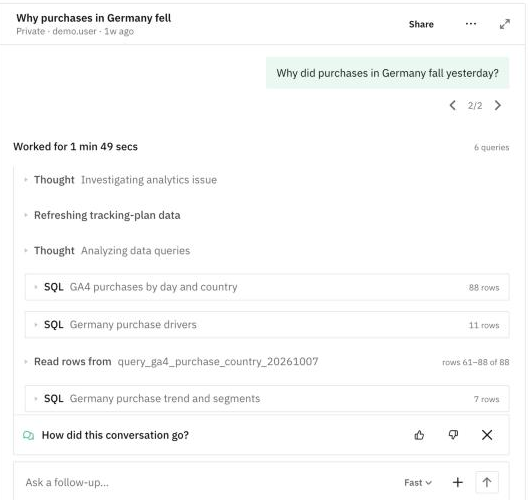
Then comes the answer. When a warning affects the figures, a Data quality note under the answer tells you how, and how far you can trust the number.
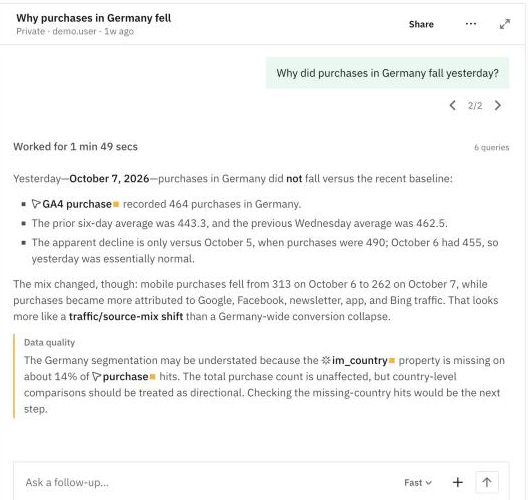
Under each answer:
- Thumbs up and thumbs down to rate it, and a button to copy it.
- Suggested follow-up questions. Click one to ask it.
After some answers, the agent offers Turn this answer into a report?: click Yes to get it as a report, No to skip it, or Don't suggest again.
When the agent needs a decision, it asks with a short list of options to pick from. When it creates a report or an audit, the thread shows it as a card with Open report or Open audit.
Your questions
Hover one of your questions to Copy the question, Resend it or Edit it. When a question has more than one version, the arrows next to it move between them (Previous version, Next version).
Share a thread
Share offers three levels:
- Private: only you.
- Everyone: everyone with access to this plan.
- Public link: anyone with the link, no sign-in.
… > Analytics shows who viewed the thread, which version and when, and its downloads.
Limits
- Questions about traffic, consent and spend cover the last 90 days at most.
- The agent opens a public page of your site in a browser only with your approval.